






On this page
Short answer: USB-C is the shape of the plug. Thunderbolt is a faster, certified standard that runs through that same plug. Every Thunderbolt 3, 4 and 5 port is a USB-C port, but not every USB-C port is Thunderbolt. A Thunderbolt port will run your ordinary USB-C devices. An ordinary USB-C port may not run Thunderbolt-only devices, such as some docks and external GPU enclosures, at full speed, or at all.

Is Thunderbolt 3 the same as USB-C?
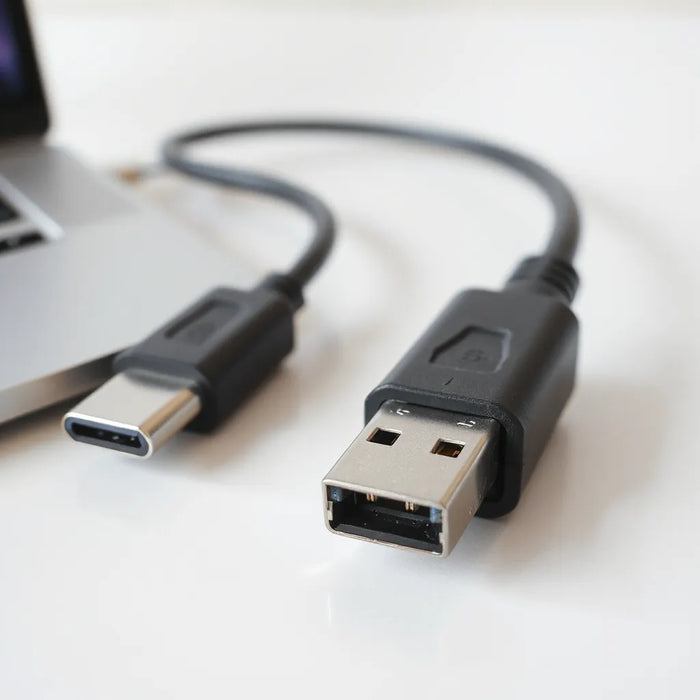
No, but they share a connector, which is where the confusion starts. "USB-C" describes only the oval connector. Behind that connector, a port or cable can carry very different standards: basic USB 2.0 at 480 Mbps, USB 3.2 at 5–20 Gbps, USB4 at 20–80 Gbps, or Thunderbolt at 40–120 Gbps. Two cables that look identical can differ more than a hundredfold in speed.
The standards side by side
| Standard | Top data speed | Laptop charging | Good to know |
|---|---|---|---|
| USB 2.0 over USB-C | 480 Mbps | Depends on cable and charger | Common on cheap charging cables |
| USB 3.2 | 5, 10 or 20 Gbps | Depends on cable and charger | Most USB-C hubs and drives |
| USB4 | 20–40 Gbps (USB4 v2: up to 80 Gbps) | Depends on device | The open standard Thunderbolt 4 and 5 build on |
| Thunderbolt 3 | Up to 40 Gbps | Up to 100W (cable-dependent) | Older Macs and Windows laptops (roughly 2016–2020) |
| Thunderbolt 4 | 40 Gbps, guaranteed minimum | Up to 100W for thin-and-light laptops | Stricter certification than Thunderbolt 3 |
| Thunderbolt 5 | 80 Gbps bidirectional; up to 120 Gbps with Bandwidth Boost | Up to 140W required; up to 240W on some devices | Dual 8K monitor support (with display stream compression) |
Thunderbolt figures are from Intel. USB4 figures are from USB-IF. Sources are at the end of this article.
What changed from Thunderbolt 3 to Thunderbolt 4?
Top speed didn't change: both reach 40 Gbps. The difference is what's guaranteed. Intel's Thunderbolt 4 certification sets minimums for every certified computer. These include 40 Gbps, PCIe data at 32 Gbps, laptop charging on at least one port, and waking the computer from sleep through a Thunderbolt dock. Thunderbolt 3 left more of that optional, so two "Thunderbolt 3" laptops could behave differently with the same dock. Thunderbolt 4 also requires USB4 compliance and DMA security protection.
What does Thunderbolt 5 add?
Intel rates Thunderbolt 5 at up to 80 Gbps in each direction, twice Thunderbolt 4. When a lot of video is flowing, "Bandwidth Boost" can push up to 120 Gbps towards displays. It also raises charging: Thunderbolt 5 laptops must support at least 140W charging, with up to 240W on some devices. Under the hood it builds on USB4 v2, DisplayPort 2.1 and PCIe Gen 4.
Thunderbolt vs USB4: which do you need?
USB4 is the open standard, and Thunderbolt 4 and 5 are certified on top of it. The practical difference is the floor. Intel's comparison lists USB4 computers at a minimum of 20 Gbps, against Thunderbolt 4's 40 Gbps. A USB4 laptop may be just as fast, but Thunderbolt certification guarantees it. If you rely on a dock that drives multiple monitors and fast storage over one cable, a Thunderbolt-certified laptop, dock and cable removes the guesswork.
How do I know which port I have?
- Look for the lightning-bolt icon next to the port. That marks Thunderbolt. Some laptops instead print "USB4" or a speed such as "40Gbps".
- On a Mac, open System Information and look under Thunderbolt/USB4.
- On Windows, check your laptop's spec sheet, or look for the Thunderbolt Control Center app.
- No icon and no listing? Assume it's a standard USB-C port (USB 3.2 or slower).
The cable matters as much as the port
A 40 Gbps port connected with a basic charging cable runs at basic-cable speed. Match the cable to the job:
- Thunderbolt docks, fast SSDs, multi-monitor setups: a Thunderbolt 4 or USB4 40 Gbps cable. Our Thunderbolt 4 Active Cable (3 m, 100W, 40Gbps) covers longer desk runs, and our USB4 Gen3 cable (40Gbps, 100W, 8K video) suits shorter ones.
- Older Thunderbolt 3 gear: our Thunderbolt 3 Passive Cable (100W/40Gbps).
- External drives and USB-C hubs: a USB 3.2 Gen 2 cable is plenty. Try our USB-C to USB-C cable (100W/10Gbps).
- Charging only: a 100W USB-C charging cable.
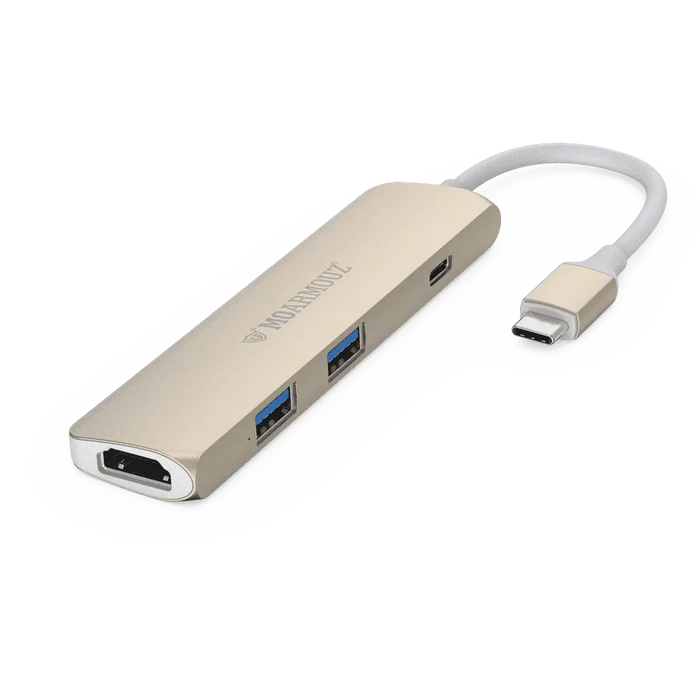
Need more ports rather than more speed? A USB-C hub works in both USB-C and Thunderbolt ports. See our 8-in-2 dual 4K HDMI hub, 4-in-1 Gigabit 4K HDMI hub, or the full range of USB-C hubs and USB-C cables.
Frequently asked questions
Is Thunderbolt 3 the same as USB-C?
No. Thunderbolt 3 uses the USB-C connector, but it's a faster standard (up to 40 Gbps). Every Thunderbolt 3 port is USB-C, but not every USB-C port supports Thunderbolt 3.
Can I plug a USB-C device into a Thunderbolt port?
Yes. Thunderbolt ports are backward compatible with USB-C devices, hubs and chargers.
Can I use a Thunderbolt device in a normal USB-C port?
Sometimes. Many Thunderbolt 4 and 5 accessories fall back to USB speeds. Thunderbolt-only devices, such as some docks and eGPU enclosures, won't work, or will lose features.
Is Thunderbolt faster than USB-C?
Thunderbolt 4 guarantees 40 Gbps and Thunderbolt 5 reaches 80–120 Gbps. A standard USB-C port runs at 480 Mbps to 20 Gbps, depending on its USB version.
Do I need a special cable for Thunderbolt?
For full speed, yes: use a Thunderbolt- or USB4-rated 40 Gbps (or faster) cable. A basic USB-C charging cable will limit the connection.
Sources: Intel – Thunderbolt technology overview and Thunderbolt 5 vs Thunderbolt 4 vs USB4 comparison; USB-IF – USB4.