



Updated on: 2026-08-02
Choosing the right USB-C to USB-A connector can reduce connection failures, prevent data transfer issues, and improve day-to-day compatibility. This guide explains how USB-C and USB-A differ, what specifications matter, and how to select a connector that fits your use case. You will also learn safe setup habits for laptops, tablets, and phones, plus common troubleshooting steps when a port does not behave as expected. Finally, you will see a practical recommendation for a reliable OTG cable option.
1. What a USB-C to USB-A connector actually does
2. Why the connector choice matters
3. Key specifications to check before you buy
4. Product spotlight: a practical OTG solution
5. Step-by-step setup and best practices
6. Personal experience: avoiding “it does not work” moments
What a USB-C to USB-A connector actually does
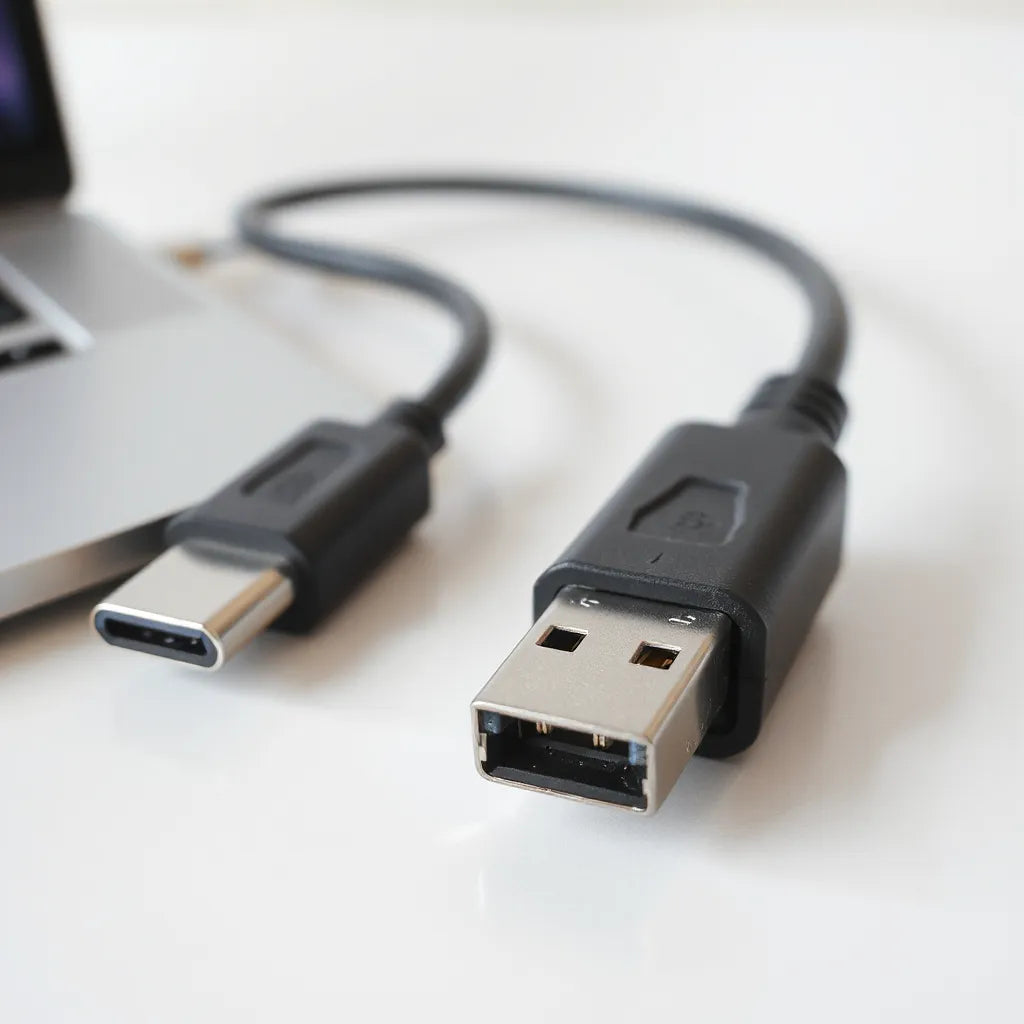
A USB-C to USB-A connector bridges two different physical and electrical standards. USB-C is the newer, reversible plug design used on many modern laptops, tablets, and phones. USB-A is the classic rectangular port most commonly found on older peripherals, such as flash drives, keyboards, mice, and some charging or accessory adapters.
In practical terms, this connector enables you to use a USB-A device with a USB-C host. When configured correctly, the connection supports either data transfer, charging, or both, depending on the device capabilities and the cable or adapter design. If a connector is not aligned with the target use case, you may experience partial functionality, slow data rates, or complete connection failure.

Reversible and classic ports shown side by side
Why the connector choice matters
Most connection problems do not come from user error alone. They often result from mismatched expectations about bandwidth, power delivery, or adapter quality. A connector that is marketed as “works for everything” can still fall short in real scenarios where stable signaling matters.
Consider typical environments:
Home office: You might plug in a USB-A keyboard and mouse. If the connector is low quality, you can see intermittent disconnects or delayed input.
Travel: You may carry a USB-A drive with photos or documents. An unstable connector can corrupt transfers or force repeated retry cycles.
Workstations: You can use legacy USB-A accessories with a newer laptop. Compatibility depends on the host controller and the connector’s electrical design.
Because of this, selecting the correct USB-C to USB-A connector is not only about fit. It is also about reliability under actual workload.
Key specifications to check before you buy
To make an informed decision, evaluate connector and cable specifications that affect performance. The most important factors are listed below.
1) Data transfer standard and speed
USB-C does not automatically guarantee high-speed USB performance when paired through an adapter. Some connectors are designed mainly for charging, while others can support higher-speed data. Check whether the cable or adapter supports USB 2.0 (up to 480 Mbps), USB 3.0 / 3.1 (higher throughput), or a specific marketed speed grade.
If your priority is file transfers from a flash drive, you should choose a connector that explicitly supports the relevant USB data standard. For basic peripherals such as a mouse or keyboard, even lower-speed connectivity may be sufficient, but stability remains the core requirement.
2) Power delivery capability
Charging behavior depends on what the host device and accessory support. Some USB-C ports can provide more power than others. A USB-C to USB-A connector might allow powering a device, but it may not deliver the same charging performance you would get with a purpose-built USB-C to USB-C cable.
For charging tasks, verify that the connector supports the expected power level for your accessory. When in doubt, prioritize data and use charging separately with a dedicated charger that matches the device requirements.
3) OTG support for mobile and tablets
When you connect USB devices to phones or tablets, you often need OTG (On-The-Go) support. Many mobile devices can behave as a host only when OTG is enabled or when the accessory supports the correct handshake.
If your goal is to connect a USB-A flash drive to a USB-C phone using a USB-C to USB-A connector, OTG support becomes essential. Without it, the phone may recognize the connector but not detect the storage device.
4) Build quality and shielding
Reliable connectors reduce signal loss and electromagnetic interference. Look for cables with solid strain relief, consistent conductor construction, and proper shielding, especially if you plan to transfer larger files. A sturdier connector also resists failures from repeated bending and unplugging.
5) Compatibility with your host
Compatibility is a combination of host firmware and accessory design. Some hosts have stricter power or signaling requirements. When possible, test with the exact class of device you plan to use (for example, a USB-A storage drive rather than a random charging brick).
Product spotlight: a practical OTG solution
If you need a dependable way to connect a USB-A device to a USB-C host for data and device recognition, an OTG-capable cable is often a better starting point than a generic adapter. One product designed for this purpose is:
USB 3.1 USB Type-C OTG Cable

Shop USB Type-C OTG cable
This style of cable is intended to help devices communicate as expected when a USB-C host must access a USB-A peripheral. For example, it can be useful when you want to use a USB-A storage drive with a compatible phone or tablet. Always confirm that your mobile device supports OTG in its settings, and remember that some apps require permission to access external storage.
For additional accessory compatibility considerations, you can also review practical cable options in the Moarmouz collection: USB cable solutions.

Checklist icons for speed, power, and device detection
Step-by-step setup and best practices
Correct setup prevents most issues. Follow these steps to get stable results with a USB-C to USB-A connector and compatible devices.
Confirm the host port type. Ensure the USB-C port on your laptop, tablet, or phone supports host functionality where required. Some ports are limited in behavior.
Choose the right peripheral. Start with a device that is known to work reliably on USB-A, such as a mouse or a certified flash drive.
Connect firmly and fully. USB connectors can feel seated even when they are slightly misaligned. Remove and reinsert if you suspect a partial contact.
Enable OTG if you are using a phone or tablet. Check device settings for OTG or external device permissions. Restart the host device if required for recognition.
Test at low stakes first. Before transferring important files, test detection and basic reading. This reduces the risk of interrupted transfers.
Use quality media for storage. Flash drives vary in reliability. If the connector is correct but the drive is inconsistent, troubleshooting becomes difficult.
Observe for common failure signs. If the host reports an unrecognized device, try a different USB-A peripheral to isolate whether the issue is the adapter, the peripheral, or the host.
For best results in a tech setup that includes screen protection and accessories, you may want to keep your peripherals organized and protect your devices from everyday scuffs. If you are building a complete workstation, explore relevant protection options such as anti-glare screen protectors.
Personal experience: avoiding “it does not work” moments
There was a time when I assumed any adapter with the correct ports would perform the same. I used a simple USB-C to USB-A adapter to connect a legacy flash drive to a laptop. The drive connected briefly, then disconnected during the transfer. At first, I suspected the flash drive, because it worked on other systems.
After testing with a different USB-A device, I confirmed the problem was the adapter’s signaling stability. The issue was not about physical fit. It was about data behavior under transfer load. Once I switched to a cable designed for USB 3.1-style throughput and reliable OTG signaling, the drive stayed connected and transfers completed without interruptions. That experience reinforced a practical rule: you cannot treat connectivity accessories as interchangeable. You need one that matches the data and device context.
Summary and recommendations
A USB-C to USB-A connector is a practical bridge for keeping older peripherals usable with newer devices. However, performance depends on specifications such as data standard support, power delivery expectations, and OTG capability for mobile hosts. High-quality build and shielding also matter because they influence signal stability.
Recommendation checklist:
For file transfers, select a connector that supports the appropriate USB data standard for your needs.
For phones and tablets, prioritize OTG compatibility and verify external storage permissions.
For charging-only tasks, confirm power expectations to avoid underperformance.
For critical work, test with nonessential files first to confirm stable recognition.
If you want an accessory approach that aligns with real-world device detection, an OTG-capable USB-C cable can be a reliable option. Pair it with a quality USB-A peripheral, and you will typically reduce the risk of intermittent connection behavior.
Q&A
Will a USB-C to USB-A connector work for both data and charging?
It can, but it depends on the connector design and the capabilities of the host device and accessory. Many connectors support data, while others focus on charging. Review the product specifications to confirm whether the intended function is supported for your particular devices.
Why does my phone not recognize a USB-A flash drive through a USB-C to USB-A connector?
Most commonly, the issue is OTG support or device permissions. Some phones require OTG to be enabled and may restrict external storage access to certain apps. Also check whether the flash drive is formatted in a file system the phone can read.
How can I tell whether my connector limits transfer speed?
You can infer speed limitations by comparing transfer times for the same USB-A drive across different connectors. If the connector supports only a lower USB standard, you will typically see slower throughput than expected. For a more reliable outcome, choose a connector that is explicitly rated for the USB data standard required by your workflow.
What should I do if the connector works with one peripheral but not another?
That pattern usually indicates compatibility differences between peripherals or power draw limits. Test with another known-good USB-A device to isolate whether the issue sits with the connector, the peripheral, or the host. If the problematic device requires more power than the host can provide through the connector, it may fail even though smaller devices work.
Is it safe to use these connectors daily for work?
Yes, when you select a reliable cable or adapter and avoid strain on the connection. Use correct insertion, reduce bending stress at the connector ends, and replace any accessory that shows looseness or visible wear. Daily use is reasonable as long as the connector remains physically stable.
About the Author
Moarmouz
Moarmouz specializes in practical consumer technology guidance, with a focus on cable and accessory compatibility, device setup, and day-to-day reliability. The team evaluates real-world performance factors such as power behavior, data standards, and host-device recognition. Thanks for reading, and may your connections stay stable and predictable.
Disclaimer: This article provides general guidance on USB-C to USB-A connectivity. Device behavior varies by host model, operating system, firmware updates, and peripheral specifications. For best results, confirm compatibility in your device manuals and product documentation.
Share:
How to Pick a Screen Guard for MacBook Air M4
Best Accessories for MacBook Air M4 for Everyday Use