On this page
Multi-port hubs consolidate multiple connections into a single, organized point in your network or workspace. They can reduce cable clutter, improve manageability, and help standardize device access. The right hub supports dependable throughput while matching the needs of your equipment. This guide explains how to select, deploy, and maintain multi-port hubs for long-term reliability.
What Are Multi-Port Hubs? | Why Multi-Port Hubs Matter for Modern Setups | Step-by-Step Guide to Choosing and Deploying a Hub | Tips for Better Performance and Easier Maintenance | Common Pitfalls to Avoid | FAQs | Wrap-up & Final Thoughts | About the Author
What Are Multi-Port Hubs?
Multi-port hubs are centralized devices that provide multiple connection points for other equipment, typically using a defined interface such as USB, Ethernet, HDMI, or other signaling standards. Instead of connecting each device directly to a host, you connect all relevant peripherals through a single hub. This architecture is valuable in homes, studios, offices, and mobile work environments where cable routing and device management can quickly become complex.
In practical terms, a hub can act as a controlled distribution layer. It helps you keep ports organized, reduces repeated plugging and unplugging at the host, and can support a consistent workflow across multiple devices. When properly selected, multi-port hubs also simplify troubleshooting by making the physical connectivity layer more predictable.
Why Multi-Port Hubs Matter for Modern Setups
Many users now rely on multiple peripherals at the same time. A laptop or workstation may need storage access, display output, audio interfaces, networking, charging, and specialized accessories. Multi-port hubs respond to this reality by consolidating connections and enabling scalable setups.
Another reason they matter is standardization. When you use a single hub that matches your interface needs, you can reduce compatibility gaps and minimize performance surprises caused by mismatched capabilities. Multi-port hubs also improve ergonomics by keeping cables in one location, which is especially useful for shared desks, classrooms, and on-the-go workstations.
Finally, hubs can support operational continuity. When equipment changes, you often only need to adjust one hub rather than rewire several direct connections. This approach can save time and reduce wear on the primary host ports.

Diagram of consolidated ports into one connection hub
Step-by-Step Guide to Choosing and Deploying a Hub
-
List your devices and required functions. Start by writing down every device you intend to connect, including displays, storage, input devices, docking requirements, and any networking or power needs. If you do not know the exact interface of each device, check the device documentation before purchase.
-
Identify the connection type you need. Multi-port hubs come in different interface categories. Select a hub that matches the host and device interface requirements. For example, if your setup depends on high-speed data transfer, choose a hub that clearly supports the relevant throughput and protocol behavior for your use case.
-
Confirm compatibility with your host. A hub can be physically compatible but still underperform if the host supports a lower version of the relevant standard. Validate support for your operating system and device generation. Where possible, prioritize hubs that communicate capabilities transparently and support the feature set you require.
-
Evaluate throughput and bandwidth sharing. Many hubs operate with shared bandwidth across ports. If you plan to run multiple data-heavy peripherals simultaneously, ensure the hub is designed for balanced performance. Look for specifications that describe how the hub allocates resources and whether it can maintain stable speed under multi-device loads.
-
Plan power delivery and charging behavior. Some hubs can deliver power to connected devices. If power is part of your workflow, confirm wattage support, charging profiles, and safe negotiation behavior. If your devices have strict power needs, treat power delivery capacity as a core selection criterion rather than an afterthought.
-
Consider physical layout and cable management. Choose placement that reduces strain on connectors. Verify port spacing so that thick adapters do not block adjacent ports. Cable routing should support easy access while protecting ports from repeated mechanical stress.
-
Test with representative workloads. Before finalizing, connect your most demanding combination of devices. Confirm stable device detection, consistent performance, and expected behavior for peripherals that rely on continuous connectivity such as audio, network services, and external storage access.
-
Document your configuration. Record which devices connect to which ports and any special settings. This reduces downtime when you rebuild the workspace or when you replace devices later.
Tips for Better Performance and Easier Maintenance
-
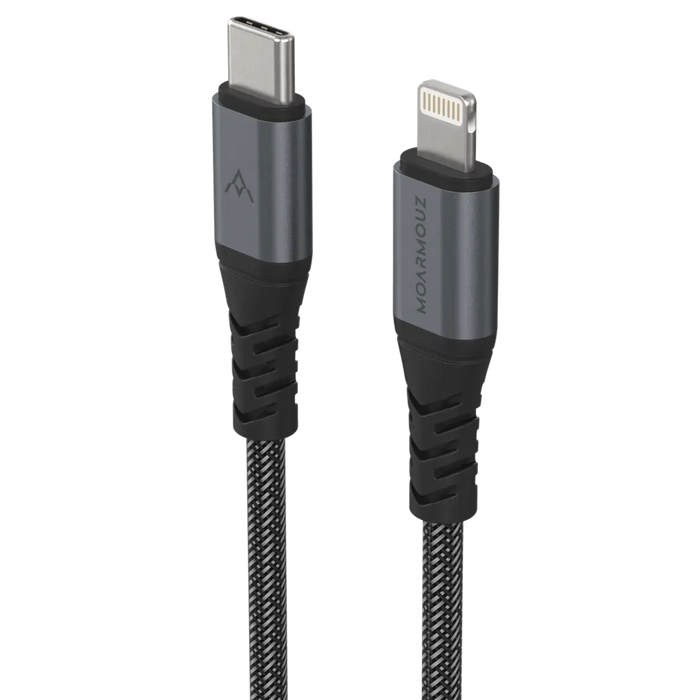
Use appropriately rated cables. A hub is only as strong as the cables that connect it to the host and peripherals. For consistent performance, choose cables that support the required interface and data standards.
-
Keep the environment stable. Heat and dust affect reliability over time. Ensure the hub has adequate airflow and avoid blocking vents or placing it in tight, heat-trapping spaces.
-
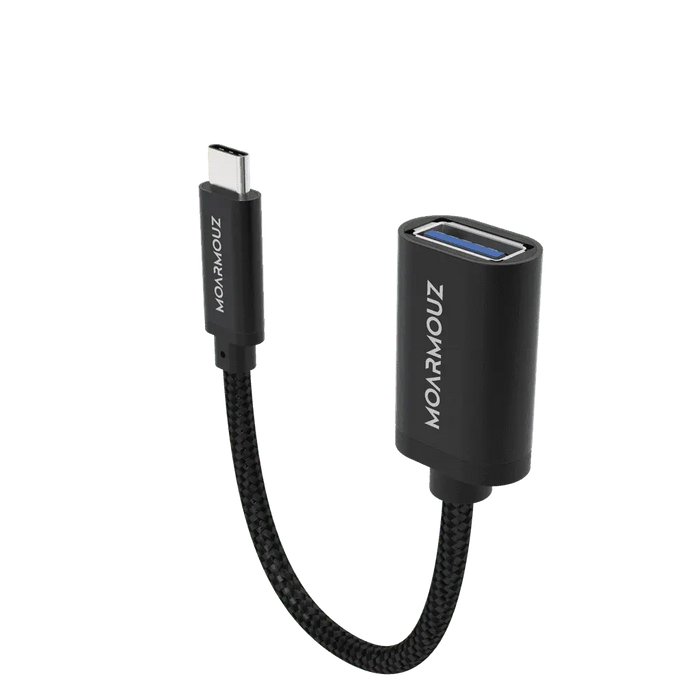
Minimize unnecessary adapter layers. Each additional adapter can introduce compatibility and signal integrity issues. Prefer direct, standards-aligned connections.
-
Apply orderly connection habits. Connect power-sensitive devices carefully and in a consistent order when possible. This can reduce intermittent detection issues.
-
Store spare components responsibly. If you maintain cables and accessories for your hub, store them without sharp bends and avoid environments that increase oxidation or corrosion risk.
-
Match your hub to your most demanding scenario. If you occasionally connect extra devices, prioritize performance for your typical peak workload rather than your light-use days.
Common Pitfalls to Avoid
Even well-designed multi-port hubs can underperform if key details are overlooked. The most common pitfalls include buying based on port count alone rather than throughput and feature coverage. Port-heavy devices may look attractive, but shared bandwidth and limited signaling capabilities can create bottlenecks.
Another pitfall is ignoring power requirements. If your hub must power devices, insufficient power delivery can lead to unstable operation, intermittent charging, or device resets. Always treat power specifications as mandatory review items.
Users also sometimes neglect software and driver behavior. While many hubs are designed to be plug-and-play, specialized peripherals can behave differently depending on host settings. If a device requires specific modes or profiles, confirm that your hub supports those modes.
Finally, many problems come from physical setup. Poor cable strain relief can gradually damage connectors. If your hub is frequently moved or used in a travel environment, ensure that port access does not cause repeated bending of cables.

Split-screen view: bandwidth and power indicators across ports
FAQs
How do multi-port hubs differ from docking stations?
Multi-port hubs focus on providing multiple connection points for a specific interface type. Docking stations usually bundle additional functions such as advanced display output, integrated networking, storage support, or power delivery in a single enclosure. The best choice depends on whether you need simple consolidation or an all-in-one expansion platform for your host.
Will a multi-port hub slow down my devices?
It can, depending on bandwidth allocation and the workload. If multiple connected devices share the same communication channel, peak performance may decrease. Selecting a hub with appropriate throughput for your busiest scenario reduces this risk. Testing with your actual device set helps confirm real-world behavior.
What should I check before using a hub for displays or high-speed peripherals?
Verify the supported interface version, display resolution or refresh rate requirements, and whether the hub supports the same signaling modes as your devices. For high-speed peripherals, confirm throughput specifications and ensure the connected cables are rated correctly. If your devices use specialized protocols, validate compatibility on your host operating system.
Can I leave a multi-port hub connected all day?
In most cases, continuous operation is acceptable when the hub is designed for ongoing use. Use stable power, keep vents unobstructed, and avoid frequent connector movement while devices are active. If you notice overheating or unstable detection, pause operation and review cable integrity and airflow.
Wrap-up & Final Thoughts
Multi-port hubs are practical infrastructure for managing many peripherals with less friction. The core selection process is straightforward: match interfaces, confirm performance under shared bandwidth, validate power needs, and plan physical deployment for durability. With those steps completed, you can build a reliable connection layer that supports consistent workflows.
If you want a clean, organized accessory experience alongside your hub, consider pairing your setup with well-matched protective and functional gear from Moarmouz. For example, cable organization and device protection can make your workstation feel more dependable over time. For more device-accessory options, you can also explore cables that fit your connectivity needs.
About the Author
Moarmouz is a technology and e-commerce content specialist focused on connectivity workflows, accessory selection, and practical setup guidance for everyday users and professionals. The work emphasizes clear specifications, real-world compatibility, and maintainable desk organization. Thanks for reading, and use the checklist above to choose multi-port hubs that genuinely fit your devices.