



Updated on: 2026-07-13
An OTG adapter for smartphones expands what your phone can do by enabling direct device-to-device connections. It can help you attach storage media, keyboards, game controllers, and other compatible peripherals without additional hubs. Choosing the correct cable and ensuring your phone supports OTG are essential for stable performance. This guide explains key advantages, potential limitations, and a practical setup workflow you can follow right away.
- Pros & Cons of OTG Adapter for Smartphones
- Step-by-Step Practical Guide
- Check Compatibility Before You Connect
- Setup and Best Practices for Reliable Use
- Troubleshooting When OTG Fails to Work
- Security and Performance Considerations
- Common Use Cases That Provide Real Value
- Buying Checklist: What to Look For
- Wrap-Up
- Q&A Section
Pros & Cons of OTG Adapter for Smartphones
An OTG adapter for smartphones is a practical accessory when you want your phone to recognize external hardware through a USB connection. In many workflows, it reduces friction between mobile devices and everyday peripherals. Still, it is not a universal solution, and performance depends on compatibility, power requirements, and firmware support.
Key benefits
Direct peripheral access: Attach supported devices without a full docking station.
Improved productivity: Use a keyboard, connect controllers, or transfer files faster than manual methods.
Convenient media workflows: Read supported storage formats and move documents between devices.
Portability: Compact adapters and cables are easy to carry.
Flexible expansion: Many setups can be tailored to specific tasks, such as backups or offline device control.
Potential limitations
Phone support varies: Not every smartphone enables OTG features or behaves the same across versions.
Power-hungry devices may fail: Some peripherals require more current than a phone port can provide.
File system and format constraints: External drives may require correct formatting to be readable.
Adapter quality matters: Low-quality cables can cause unstable connections or slow transfers.
Security risks if misused: Connecting unknown devices may expose sensitive data if you open unfamiliar files.

Phone-to-peripheral connection concept with icons
Step-by-Step Practical Guide
The best results start with a disciplined setup process. The steps below focus on compatibility checks, correct attachment order, and verification signals you can confirm on screen. This approach helps you avoid common pitfalls such as unsupported ports, incorrect cable types, and insufficient power delivery.
1) Check Compatibility Before You Connect
Begin with the basics that determine whether the connection will work at all.
Confirm OTG support: Look for OTG or USB accessory support in your phone settings documentation or system features.
Match the connector type: Identify whether your phone port is USB-C or another standard. Use a cable designed for the correct port.
Verify the peripheral requirements: For storage drives, confirm that the device is within supported storage types and file systems. For input devices, confirm standard USB-HID support if applicable.
Consider power needs: If the peripheral has lights, motors, or active features, it may require higher power. In that case, a bus-powered setup may not work.
2) Choose the Right Cable Style
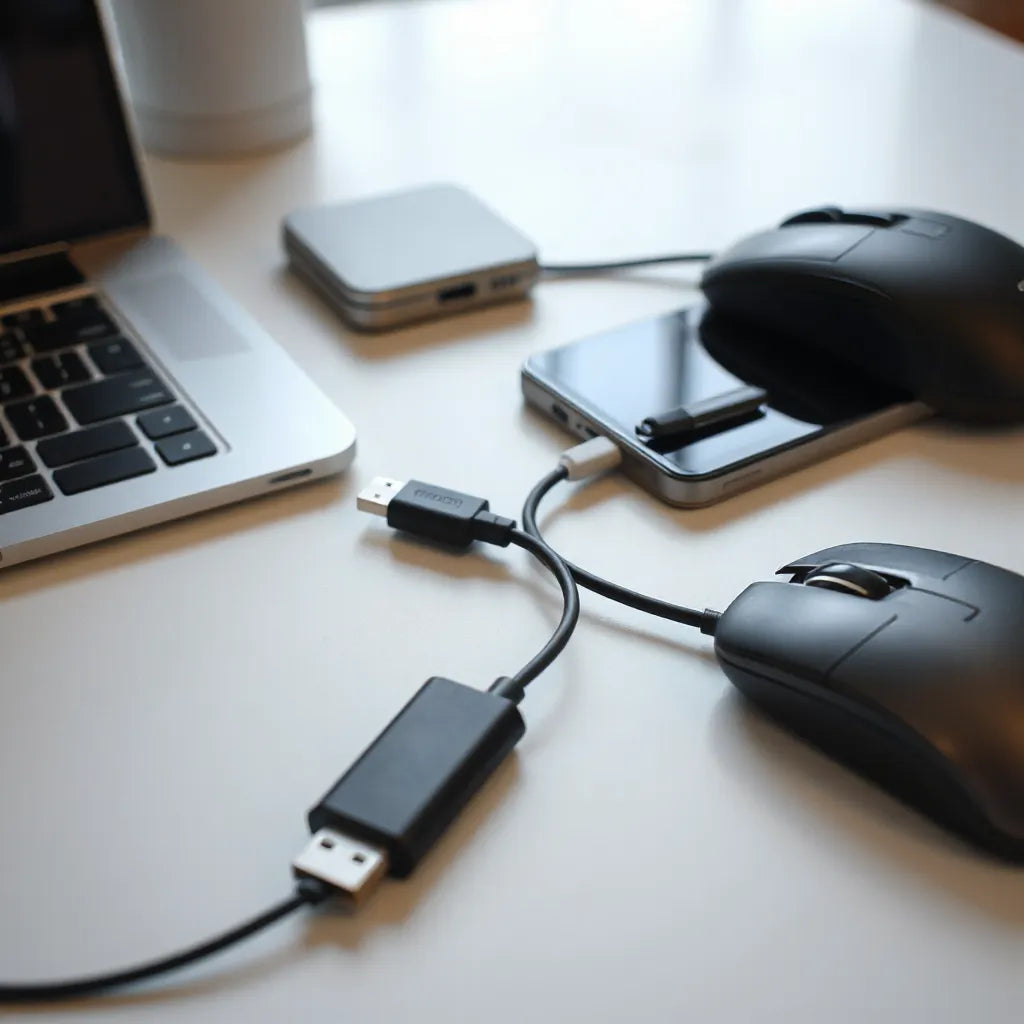
An OTG adapter for smartphones typically appears as a short cable or compact dongle. Prefer products that maintain solid contact and proper shielding, especially if you will use the connection frequently. If your phone uses USB-C, a USB Type-C OTG cable is often the most straightforward path.
To illustrate a typical solution, consider this compatible option:
USB 3.1 USB Type-C OTG Cable

View the USB-C OTG cable product page
3) Setup and Best Practices for Reliable Use
After confirming compatibility and choosing the correct cable, follow a controlled setup workflow.
Attach in a stable order: Connect the OTG cable to the phone first, then connect the peripheral or storage device.
Wait for recognition: Allow a short moment for the phone to detect the device. Look for prompts in the notification area or media interfaces.
Use the right app: Storage access usually starts in the file manager or a media library. For input devices, system settings may show device status.
Keep connections secure: A loose connection can appear as intermittent device detection. Use a strain-relief method when possible.
Test with a low-risk device: Begin with a known compatible peripheral or drive to validate the chain before transferring important files.
If your goal includes protecting the phone during frequent cable handling, you may also benefit from a resilient device strategy. For example, pairing a clean cable setup with dependable screen protection is a practical way to reduce the risk of damage. You can explore protective options such as anti-glare screen protectors from the same ecosystem.
4) Troubleshooting When OTG Fails to Work
When OTG does not function, the failure typically falls into a few predictable categories: incompatibility, power limits, file system mismatches, or unstable cable connections. Use the checklist below to isolate the issue quickly.
No device detected: Disconnect and reconnect. Confirm OTG support and retry with another peripheral to isolate whether the phone or the accessory is the cause.
Device detected but cannot be read: For storage media, confirm formatting and supported file systems. Some drives require a specific format to be recognized.
Disconnects during use: Replace the cable with a higher-quality option, ensure the connector is fully inserted, and avoid excessive movement.
Keyboard or controller not responding: Verify that the peripheral uses a supported USB class. If it requires special drivers, it may not function.
Charging conflicts: Some phone models behave differently when charging and using accessories simultaneously. If possible, test without charging to confirm baseline recognition.

Diagnostic flow with icons for detection, power, and files
5) Practical troubleshooting sequence
Test with a different known peripheral.
Try a different OTG cable with solid build quality.
Check the peripheral power draw. If it is high, test with a different device or a powered alternative.
Verify file systems if the peripheral is a storage drive.
Confirm the phone has the necessary system permissions for external device access.
Security and Performance Considerations
OTG connectivity is powerful because it enables direct access to external devices. That also means you should treat the connection as a potential security boundary. Keep your workflow disciplined to reduce risk and maintain stable performance.
Security best practices
Connect only trusted devices: Avoid plugging in unknown storage media.
Scan files before opening: Use your device security tools or safe scanning workflows when available.
Limit automatic actions: If your file manager prompts for actions, verify them before proceeding.
Be cautious with credentials: Do not enter sensitive information into apps launched from unfamiliar files.
Performance factors
Connection stability: A higher-quality cable with proper shielding reduces errors and dropouts.
Storage speed and format: The performance ceiling depends on the storage device and its file system.
Ambient and mechanical stress: Frequent bending or strain at the connector can degrade contact over time.
For a broader ecosystem approach, some users add cable management and organized carry options. If you want a focused route, you can also check accessories like cables for well-aligned solutions.
Common Use Cases That Provide Real Value
OTG functionality can be used in multiple scenarios. Some are day-to-day practical, while others are task-specific. The common thread is that OTG reduces dependency on additional computers or complicated setups.
1) File transfer and backup workflows
You can move photos, documents, and project files by attaching a storage device. For many users, this supports quick off-device backups when a computer is not available. Always verify file integrity after transfers, particularly for large folders.
2) Input devices for mobile productivity
A keyboard can improve typing speed and reduce errors. A controller can make certain games and media navigation more comfortable. When using input devices, confirm that the peripheral is recognized as a standard USB accessory.
3) Media playback from external storage
When supported formats are available, external storage can extend media libraries. Results vary by phone model and the media player application you use.
4) Portable workstation scenarios
OTG can support a mobile “micro desk” where you add an input device and use a file-centric workflow for writing, editing, or reviewing documents. This is particularly helpful for field work where access to laptops may be limited.
In some ecosystems, users also pair OTG cables with protective cases and organized setups. If you want a single example of accessory thinking, you can explore products across platforms such as Tigris as a reminder that device-ready accessories often complement each other.
Buying Checklist: What to Look For
Selecting the correct adapter is not only about connector shape. A reliable OTG adapter for smartphones supports stable signal transfer and matches the phone port precisely. Use the checklist below to make a safe, informed purchase decision.
Connector and standard fit
Port matching: Ensure the adapter is designed for your phone port type, commonly USB Type-C for modern devices.
USB performance tier: While not the only factor, higher USB standards can improve transfer behavior with supported devices.
Build and reliability signals
Durable strain relief: Reinforcement near the connector helps reduce wear.
Secure fit: A stable connection reduces intermittent detection and re-pairing cycles.
Consistent shielding: Better shielding can reduce errors when cables are used near other electronics.
Compatibility and use requirements
Target peripheral types: If you plan to use storage drives, prioritize compatibility with expected file systems.
Expected power draw: Confirm that the devices you intend to connect are appropriate for phone-powered setups.
Workflow expectations: If you require consistent file transfers, choose a cable designed for steady connection behavior.
Wrap-Up
An OTG adapter for smartphones is a reliable way to expand phone capability by enabling direct connections to compatible peripherals and storage. The most important steps are verifying OTG support on your phone, selecting a correctly matched cable, and using a disciplined setup order. When OTG does not work, start with isolation testing: swap the peripheral, then test a different cable, and verify power and file system requirements. With the right approach, you can build a practical mobile workflow that is faster, more organized, and more dependable.
Q&A Section
Will an OTG adapter work on all Android and iPhone models?
OTG behavior depends on device support and system configuration. Many Android models support OTG directly, while some configurations may require specific settings. For iPhone devices, the method and compatibility vary and may involve different accessory protocols. The most accurate approach is to confirm your phone model supports the intended USB accessory behavior and to check the adapter’s connector type matches your port.
Why does my phone show the device briefly and then disconnect?
Brief detection followed by disconnects commonly points to power limitations, an unstable cable connection, or peripheral requirements that exceed what the phone port can supply. Reconnect securely, test with another peripheral, and try a higher-quality adapter. If you are connecting a storage drive or device with active components, power demand may be the primary cause.
What file formats work best with external storage connected through OTG?
Supported file formats and file systems depend on your phone model and the file manager or media application you use. Many devices handle common file systems more reliably than others. If recognition occurs but files do not display correctly, verify the drive format and ensure it uses a file system your phone supports.
Can I use an OTG adapter to connect a keyboard and mouse?
In many cases, a standard USB keyboard or mouse can work through OTG if it uses a commonly supported USB class. Functionality may vary for advanced features such as macro keys, extra buttons, or special device drivers. Testing with basic inputs first is recommended to confirm compatibility.
How can I improve stability during file transfers?
Stability depends on both the adapter and the storage device. Use a reputable, correctly designed OTG cable, keep the connector firmly seated, and avoid moving the phone while transferring large files. After transfer, verify file size or checks using your phone’s file tools when possible.
About the Author
Moarmouz is an ecommerce and device-compatibility specialist focused on practical accessory performance and customer-ready guidance. With a background in technical writing and product strategy, Moarmouz helps shoppers choose accessories that work reliably with real-world workflows. Thank you for reading, and for building a more capable mobile setup with confidence.
Share:
MacBook Screen Protector: Fit, Care, and Common Mistakes
MacBook Screen Protector: Fit, Care, and Common Mistakes