



Updated on: 2026-06-22
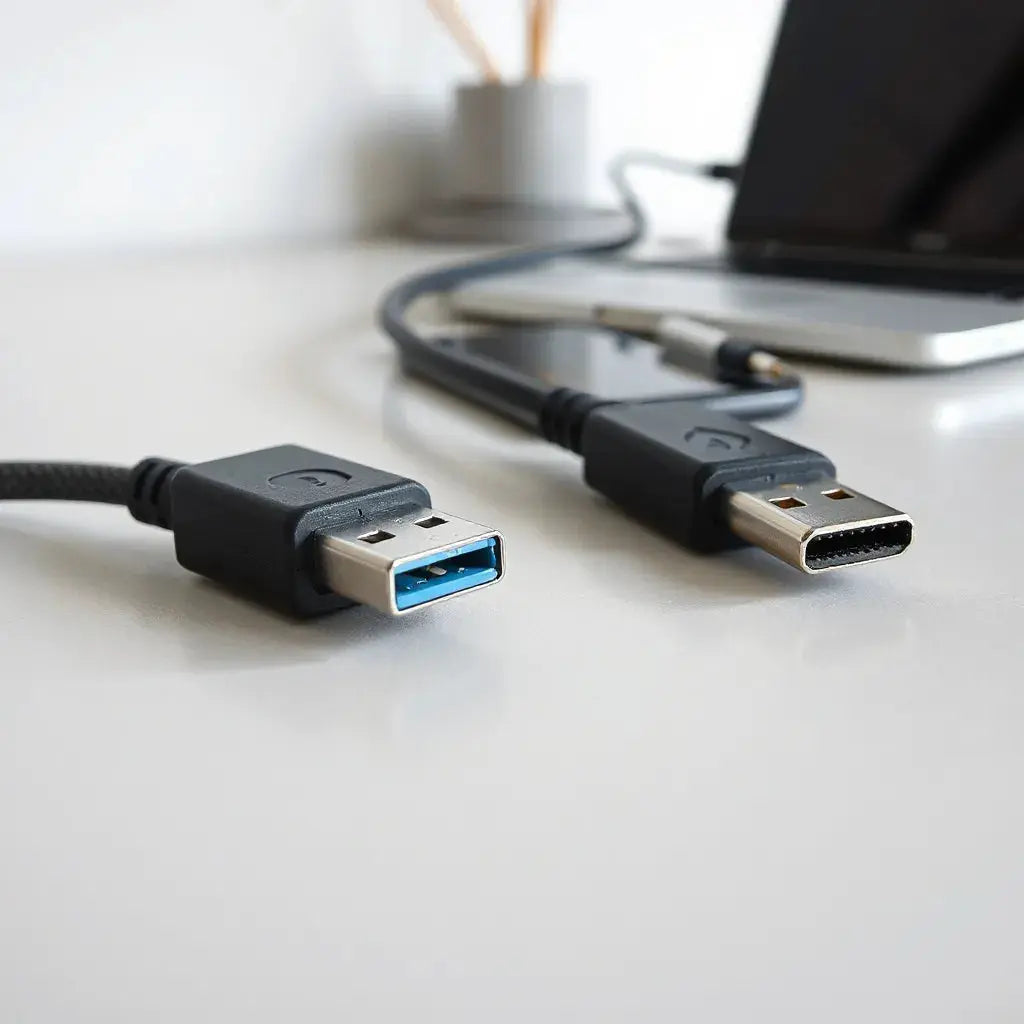
Data sync cables connect devices and transfer files reliably. Selecting the right cable improves both speed and stability. Quality shielding and correct connector standards reduce disconnects and failed transfers. This guide explains how to choose, test, and maintain data sync cables for everyday use.
Table of Contents
1. What Are Data Sync Cables?
Data sync cables are connection cables designed to transfer data between a device and a host system, such as a computer, tablet, or docking station. They typically support file transfer and device communication, not only charging. In many real setups, the same cable may also provide power, but the data path depends on the cable construction and the connector standard.
When you use data sync cables, your devices exchange information through defined electrical signals. The host and the device negotiate capabilities such as transfer mode. If the cable is not built for data transmission or if the specification is mismatched, you may see slow transfers, repeated disconnects, or the device not appearing in the file system.
2. Why Data Sync Cables Matter
Many people buy cables mainly for charging. However, data transfer quality affects workflow and device reliability. A stable data connection helps with backing up files, moving photos, syncing notes, transferring software, and updating device settings.
Even if a cable can deliver power, data performance can differ. That difference comes from conductor quality, shielding, and the design of the connector and contacts. For example, poor shielding can increase electromagnetic interference, which may corrupt data packets during transfer. A cable that supports correct signaling standards reduces these risks.
For buyers who want a practical solution, it helps to also consider device accessories that reduce friction and wear. For instance, pairing cables with protective accessories can reduce cable strain. If you want device protection that complements everyday connectivity, you can review options in cable accessories.
3. Myths vs. Facts
-
Myth: Any charging cable can sync data.
Fact: Some cables are charge-only. Data sync cables include the required conductors and signaling design for transfer. -
Myth: A longer cable always performs worse.
Fact: Performance depends on construction and specification. Many users work fine with longer lengths, but poor quality cables can still fail under load. -
Myth: If the device charges, the data connection is working.
Fact: Charging and data transfer use different paths. You must confirm the device appears on the host. -
Myth: All connectors are interchangeable.
Fact: Connector shape and pinout matters. Compatibility depends on the specific port standard on both devices. -
Myth: Higher speed is guaranteed by advertising alone.
Fact: Actual speed depends on negotiated standards, the host hardware, and correct cable signaling.
4. Personal Experience
I once used a cable that seemed fine at first. The device charged, and the connection felt stable for short sessions. After I began transferring large photo batches, the transfer stalled and the device disconnected mid-process. The host still showed power, but it did not maintain a consistent data link.
Switching to a cable clearly designed for data sync resolved the issue. The device appeared immediately, and transfers completed without interruptions. The lesson was simple: power capability does not guarantee reliable data transfer, and the cable specification matters during high data loads.

Shielding concept: signal lines with interference barriers
5. How to Choose the Correct Cable Specification
Choosing data sync cables is easier when you evaluate them as communication tools, not just accessories. Start with connector compatibility. Then confirm the cable supports data transfer, not charge-only behavior.
Check connector type and port support
Before purchase, confirm both ends match the ports you use. Common standards may include USB-C variants, Lightning, or other device-specific connector designs. Even when two cables look similar, differences in pin assignments or supported signaling can change behavior.
Confirm data transfer capability, not just power
Look for descriptions that explicitly indicate data transfer. If a listing is unclear, treat the cable as a risk for syncing. When possible, prioritize listings that differentiate data sync cables from charge-only cables.
Consider shielding and durability
Shielding helps reduce interference. A cable that uses proper shielding can provide steadier transfers in busy environments, such as desks with many chargers, monitors, or hubs. Durability matters too. Reinforced strain relief and a flexible outer jacket reduce damage at the connector ends.
Match the transfer mode you need
Some workflows require only basic syncing. Others require faster movement of large files. Transfer speed is affected by cable capability and both devices. A cable that supports the right standard gives your devices the best chance to negotiate higher transfer modes.
Use device protection to reduce connector stress
When connectors are repeatedly bent or twisted, contacts can wear over time. Using a stable setup lowers stress on the cable. For example, protecting a device with a case and screen solution can reduce movement and keep the cable connection aligned.
If you use a smartphone daily, you may prefer a protective approach that keeps your ports accessible. You can explore options such as iPhone cases that balance protection and everyday access.
6. Testing and Troubleshooting in Real Use
Even a good cable can underperform if it is damaged or if a host configuration restricts the transfer mode. Testing helps you confirm that your setup is correct before you rely on it for important backups.
Perform a simple recognition test
Connect the device to the host and confirm it appears in the expected area, such as a file explorer or device manager. Charging alone is not proof. If the device does not appear, try another cable or a different port.
Validate transfer reliability with a small batch
Before moving critical files, transfer a small folder and confirm it completes without errors. This step can reveal data instability early. It is especially useful for new cables or when you change hubs and adapters.
Check for contact and cable wear
Inspect connectors for dust or damage. Clean gently if needed, and avoid forcing the connector. If a cable often works when lightly adjusted but fails when moved, the connector may be wearing or the cable may have internal breakage.
Avoid unreliable adapters and unmanaged hubs
Some setups use USB hubs or multi-port adapters. If a hub is not designed for data transfer, the system may fall back to limited modes. Prefer hubs from reputable standards and confirm they support the required signaling for data sync cables.
Use stable ports for high-value transfers
High-value transfers, such as large photo libraries, are more sensitive to intermittent connections. Use a direct port when possible and keep the cable path stable to reduce strain.

Workflow diagram: connect, recognize, sync, verify completion
7. Common Use Cases and Best Practices
Data sync cables support a wide range of everyday workflows. The right approach depends on your device and your data size, but best practices remain consistent across platforms.
Sync photos and videos for editing
Creators often move content from a phone or tablet to a computer for editing. Stable data sync cables help reduce partial imports and missed files. If your camera roll is large, use a small batch test first, then proceed to full transfers.
Back up files and settings
Regular backups require predictable device recognition. A cable that connects reliably reduces the chance of incomplete backups. When backups matter, avoid switching cables mid-process.
Update devices and transfer documents
Device update processes can be sensitive to interruption. If you perform updates through a computer, use a consistent cable. This reduces connection variability and helps your host maintain the expected communication session.
Reduce cable strain with mindful placement
Cable strain is a common reason for data connection problems. Avoid sharp bends near the connector. Route cables so that movement does not tug directly on the port area. Consider using cable management to prevent frequent stress.
Pair with compatible protective accessories
Protection improves usability. It reduces the risk of device movement that can loosen a connection. For example, a tablet or laptop can benefit from a stable cover and sleeves that keep the device aligned in a bag or on a desk. You can also explore laptop sleeves to support safe, stable transport.
If your workflow includes multiple devices, you can further reduce friction by keeping screen protection in place. For MacBook users who want a consistent surface for daily use, you can review privacy screen protection.
You may also appreciate that strong connectivity practices matter beyond devices. Some buyers coordinate equipment and accessory routines for fitness and daily organization. For inspiration on practical gear handling, you can also visit GymBum UK.
8. Final Thoughts & Takeaways
Data sync cables are essential for file transfers, backups, and reliable device communication. Charging alone is not enough evidence. Verify that the cable supports data transfer, confirm connector compatibility, and prioritize shielding and durability for stable performance.
When you test with a small batch, inspect connectors, and use consistent ports, you reduce the risk of interrupted sync sessions. With a careful selection process, data sync cables become a dependable part of your workflow rather than an unpredictable variable.
Q&A Section
How can I tell whether a cable is charge-only or a true data sync cable?
Connect the device to your computer and check whether it appears in the file explorer or device manager. Charging without recognition suggests charge-only behavior. You can also try a known data transfer workflow, such as importing a small folder of files, to confirm successful communication.
Why does my device charge but not sync files?
This usually indicates that the cable does not support data transfer, the connector is not making reliable contact, or the host is not negotiating the correct signaling mode. Connector wear, dust, and incompatible adapters can also cause this pattern.
Do higher speed cables always improve real-world transfer time?
They can, but real-world performance depends on your host hardware, device support, and the transfer mode negotiated between endpoints. A cable built for data transfer and correct signaling provides the best opportunity for higher speeds, but it cannot override limitations on either device.
What is the best way to prevent data transfer interruptions?
Use a consistent, compatible data sync cable. Avoid moving the connector during transfer, keep the cable path stable, and prefer direct ports over unmanaged hubs for critical sessions. Inspect connectors regularly for wear and keep them clean.
About the Author Section
Moarmouz
Moarmouz is an e-commerce and technology content specialist focused on accessory performance, device usability, and practical buyer guidance. The team emphasizes clear specifications, dependable workflows, and durable accessory choices for everyday technology. Thanks for reading, and we hope this guide helps you select data sync cables with confidence.
Disclaimer: This article is for general informational purposes only. Device compatibility and performance can vary by model, host hardware, software settings, and environmental conditions. For best results, review manufacturer documentation for your specific devices and connectors.
Share:
USB-C Charging Cables: Choose the Right One Fast
Choosing the Right Galaxy Tabs Accessory for Daily Use