



Updated on: July 8, 2026
A PaperType screen protector can improve how your iPad surface feels for handwriting, sketching, and note-taking. It is designed to work with a textured or paper-like experience, which supports more natural motion. Many people also choose it to reduce glare during indoor and outdoor use. With the right installation and care routine, you can maintain clarity and usability for longer.
In this guide, you will learn how this type of screen protector works, how to install it correctly, and how to choose it for your device. You will also find answers to the most common questions about durability, edge coverage, and day-to-day maintenance.
1. What Makes a PaperType Screen Protector Different
2. Myths vs. Facts About Paper-Like Screen Protectors
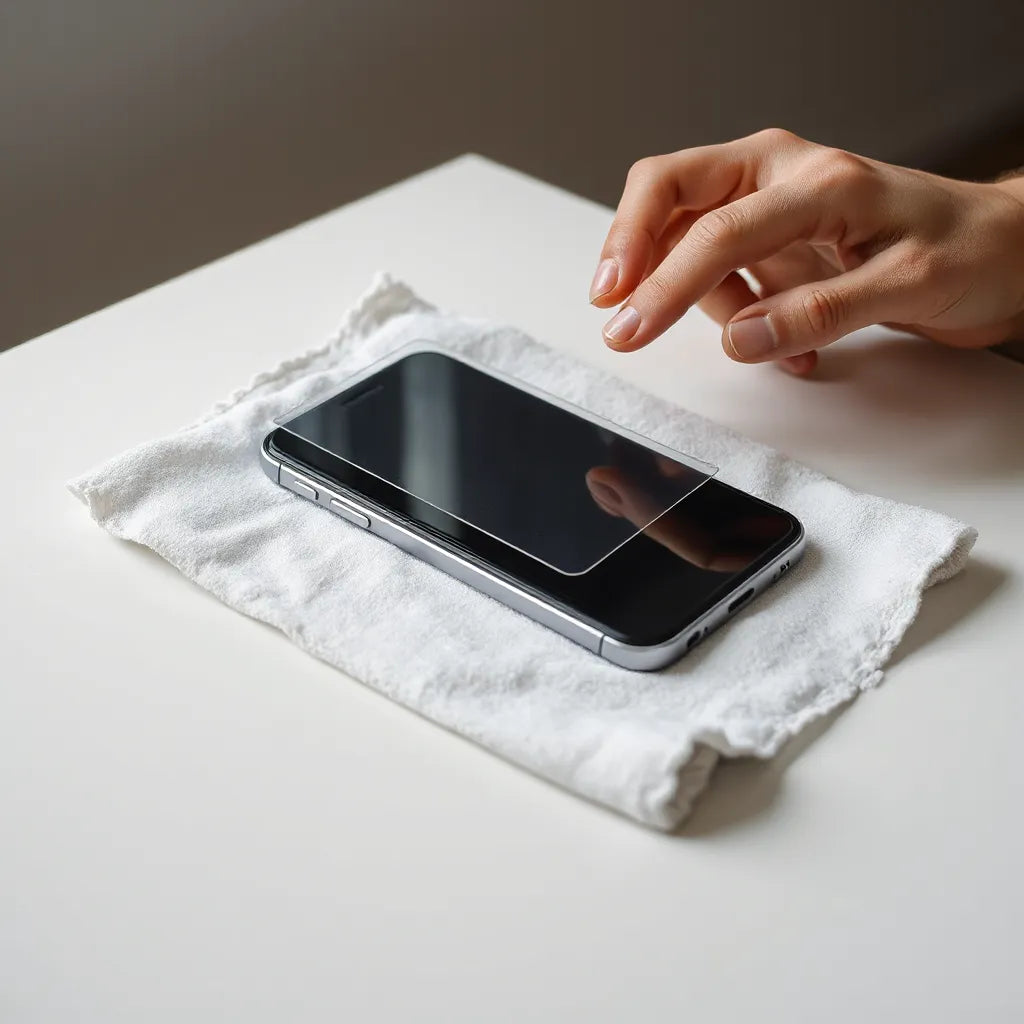
3. Step-by-Step Guide to Installing a PaperType Screen Protector
4. Best Use Cases for PaperType Screen Protectors
What Makes a PaperType Screen Protector Different
A PaperType screen protector is built for people who use an iPad with a stylus for real-world tasks such as writing, sketching, and annotating documents. The core idea is simple: the surface is engineered to feel closer to paper than to bare glass. That change in texture can affect the way your pen glides, how your lines look, and how quickly you adapt to the writing experience.
Unlike traditional clear protectors that focus mainly on scratch resistance, paper-like options also aim to improve tactile feedback. Many users find that this feedback supports faster note capture and more controlled strokes. The result is not only comfort, but also a different visual output. Fine details can appear more natural, and shading can look more consistent when the tip interacts with a lightly structured surface.

Stylus motion over textured lines symbolizing paper feel
Another common design goal is glare reduction. When a screen reflects light, it can interrupt reading and writing. Some PaperType screen protector variations are designed to limit reflections so the display remains easier to use in bright rooms and near windows. In practical terms, reduced glare helps you keep your attention on the page rather than on your surroundings.
Finally, these protectors are typically intended to be thin enough to preserve touch responsiveness. Modern installations often rely on high-precision alignment and adhesive layers that aim for a smooth interface. Still, outcomes depend on how well you prepare the screen and how carefully you apply the protector.
Myths vs. Facts About Paper-Like Screen Protectors
Paper-like protectors are popular, but they also attract misunderstandings. Below are common myths and clear corrections.
Myth: A PaperType screen protector makes the display blurry.
Fact: A properly made protector should maintain text and color clarity. Some users notice a slight change in surface finish, but good products are designed to keep the image sharp for reading and writing. If clarity decreases, the issue is often dust trapped during installation, misalignment, or a low-quality film.
Myth: Texture always damages the stylus tip.
Fact: The protector is engineered for stylus use, and many styluses are designed to work well with textured films. However, faster wear can occur if you press too hard or use incompatible stylus tips. Using the correct tip type and applying reasonable pressure helps preserve both the film and the pen.
Myth: Installation is impossible without bubbles.
Fact: Installation is achievable with patience and the right environment. A slow, methodical approach usually prevents major bubbles. Even if small micro-bubbles appear, they can often settle after proper curing or a short period under normal conditions.
Myth: Paper-like protectors eliminate glare entirely.
Fact: They may reduce reflections, but they cannot fully control lighting conditions. Positioning, brightness settings, and room light direction still matter. The goal is improved usability, not perfect invisibility of glare.
Step-by-Step Guide to Installing a PaperType Screen Protector
Installation quality determines daily performance. The steps below are designed to reduce dust, improve alignment, and minimize edge lifting. Take your time, and you will usually get a clean result.
Choose a stable, clean workspace. Use a well-lit area with minimal airflow. Wipe the table surface and keep pets away.
Power off and clean the iPad screen. Use a microfiber cloth first. If your kit includes a cleaning wipe, use it in a gentle, single direction pattern.
Remove dust using controlled methods. If your kit provides a dust removal sticker or tape, apply it carefully around the glass area before installing the film.
Plan your alignment before peeling. Hold the protector above the screen and verify camera, speaker, and edge cutouts. Start by lining up one side, then lower the rest gradually.
Apply the protector slowly with consistent pressure. Lower the film in stages. As the adhesive contacts the screen, use a soft card or squeegee tool to guide it outward to prevent trapped air.
Address bubbles immediately. If you see larger air pockets, move them toward an edge using gentle pressure rather than aggressive force.
Final check and settling time. After installation, check the corners and edges. A protective film may take a short period to fully settle, depending on temperature and adhesive design.
To connect your installation choice with broader protection strategies, you may also review other device accessories on anti-glare screen protectors, especially if glare remains a key concern.

Cleaning cloth and alignment grid symbolizing dust-free setup
Best Use Cases for PaperType Screen Protectors
PaperType screen protector designs are most valuable when you actively write on your iPad. The paper-like texture changes the way you learn, plan, and create. Consider these use cases.
1) Study, classroom notes, and annotation
For students and educators, note-taking becomes faster when the stylus feels natural. Many users prefer a surface that encourages short writing sessions and reduces hand fatigue. When you combine improved tactility with reduced reflection, reading and reviewing become more comfortable during long study periods.
2) Creative sketching and digital art practice
Sketching benefits from consistent stylus friction. A textured protector can help you maintain line control and improve shading consistency. If you practice regularly, small differences in feedback can become a major part of your workflow.
3) Professional planning and meeting capture
In professional settings, you often need legible handwriting, quick edits, and stable visibility. Reduced glare can help you maintain focus in meeting rooms. If you use templates for planning or annotation, the paper-like surface can support a more fluid writing rhythm.
4) Reading reference materials outdoors or near windows
Natural light creates reflections on glossy surfaces. A PaperType screen protector that limits glare may make text easier to read, especially when you are outdoors or beside a bright window.
Product choice matters, and one clear example of the category is:
PaperType® Screen Protector - Perfect for Sketching, Writing, and Note-taking on iPads

If you want a textured, anti-reflection option designed for note and sketch workflows, you can also explore Kent PaperType anti-reflection texture screen protector.
Care and Maintenance for Long-Lasting Performance
Correct care preserves clarity, touch behavior, and edge stability. Textured protectors require slightly different maintenance than smooth films. The goal is to keep the surface clean without scraping or damaging micro-textures.
Cleaning do’s and don’ts
Use a microfiber cloth designed for screens. Wipe gently with light pressure.
Use a screen cleaning solution only if the manufacturer recommends it. Avoid alcohol or harsh solvents unless explicitly approved.
Do not use abrasive wipes. Rough materials can dull the texture and reduce comfort.
Avoid pressing hard with a squeegee after installation. Excess pressure at edges can encourage lifting.
Stylus tip management
Texture changes how your stylus tip wears. If your writing suddenly becomes scratchy, it may be time to inspect the tip. Many stylus tips are designed to be replaceable. Maintaining the right tip condition supports consistent ink flow and helps you avoid unnecessary stress on the protector surface.
Edge prevention
Edge lifting is often the result of dust, improper alignment, or repeated flexing caused by case fit. Use a compatible case that does not pressure the screen protector edges. When removing the case, lift it gently rather than pulling sharply against the corners.
When to replace the protector
If you notice deep scratches, persistent lifting, or a surface that no longer feels uniform, replacement may improve both usability and visual comfort. A damaged textured layer can create inconsistent friction, which affects handwriting and sketch lines.
Frequently Asked Questions
Will a PaperType screen protector affect touch sensitivity?
Most PaperType screen protectors are designed to preserve touch accuracy and responsiveness. If you install the film correctly and choose a high-quality product, touch behavior should remain stable for writing, tapping, and gesture use.
Can I use a stylus with a textured protector?
Yes. Paper-like protectors are intended for stylus workflows. For best results, use a compatible stylus tip and avoid pressing excessively hard, since heavy pressure can accelerate wear.
How do I reduce glare beyond the protector?
Combine the screen protector with practical display settings. Adjust brightness, use a screen angle that minimizes reflections, and consider your room lighting direction. A glare-reducing protector improves visibility, but it cannot override all lighting variables.
Summary & Key Takeaways
A PaperType screen protector offers a paper-like surface for writing and sketching, with an added benefit of glare reduction in many designs. The installation process is the most important factor in achieving clear visibility and strong edge performance. With careful cleaning, compatible stylus usage, and a well-fitted iPad case, you can maintain the experience for longer and protect your screen investment.
If you are ready to refine your note-taking or creative workflow, consider pairing your protector with thoughtfully chosen iPad accessories and protection. For more screen protection and device case options, explore iPad covers that support secure, everyday use.
Q&A Section
Is the textured surface suitable for drawing detailed lines?
Yes. Many users select a textured protector specifically for controlled stylus friction. Detailed lines depend on both your stylus tip condition and your hand pressure. With a clean installation and a compatible tip, the surface can support fine writing and careful sketching.
What is the best way to remove dust before applying the film?
Use a microfiber cloth to remove surface particles first. Then apply the dust removal method included in your protector kit if available. Work slowly and avoid touching the adhesive side. Dust trapped under the film can cause small lifting areas and visual imperfections.
Does a PaperType screen protector work with screen protectors for privacy?
In general, a textured PaperType film is meant to be the primary protective layer. Privacy films and textured films are often designed with different optical and surface goals. If privacy is essential, evaluate a product designed to combine both functions rather than stacking incompatible layers.
About the Author
Moarmouz
Moarmouz is an editorial and e-commerce content team focused on device accessories, screen protection, and practical installation guidance. The team prioritizes clear recommendations based on usability, durability, and real-world workflow needs. If you want a smoother iPad note-taking experience, Moarmouz shares guidance that helps you choose confidently. Thank you for reading.
Share:
Best iPhone 13 Pro Accessories for Everyday Use
Best iPhone 13 Pro Accessories for Everyday Use