



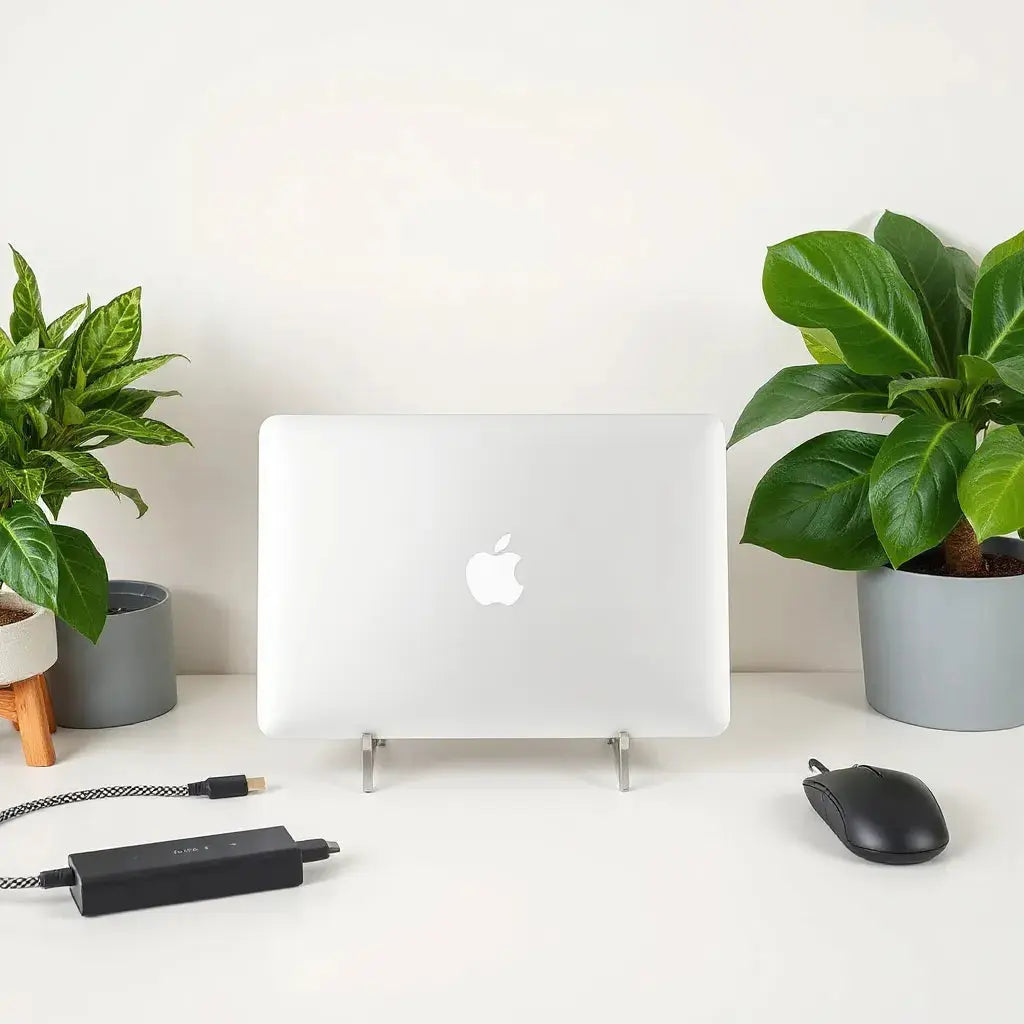
Updated on: 2026-06-12
Choosing the right add-ons for your MacBook Air M1 can improve comfort, protection, and everyday workflow.
In this guide, you will learn how to evaluate needs such as screen safety, keyboard coverage, ports, and carry style before you buy.
You will also find practical setup tips that reduce wear over time and keep cables and accessories organized.
By the end, you will have a clear checklist to build a reliable accessory setup that matches your routine.
Table of Contents
- Why macbook air m1 accessories matter for daily use
- Assess your needs before you purchase
- How-To Steps
- Screen and keyboard protection essentials
- Ports, cabling, and workflow upgrades
- Carry options for safer travel
- Visual setup concept for protection and comfort
- MacBook Air M1 compatibility checklist
- Visual setup concept for a clean workstation
- Typical buying mistakes to avoid
- FAQ
- Closing Thoughts
Why macbook air m1 accessories matter for daily use
macbook air m1 accessories are not only about style. They help you reduce risk from everyday wear, improve comfort during long sessions, and keep your workspace organized. A lightweight laptop is easy to move, but that also means it faces more chances of scuffs, dust, and accidental impacts.
When accessories are chosen thoughtfully, they create a protective system rather than a collection of unrelated items. For example, pairing a screen protector with a keyboard cover can reduce friction and cleaning stress. Adding a matching case and a carry sleeve can help absorb minor bumps during commutes. Better cable management reduces strain and keeps your desk usable, even in small spaces.
Another practical benefit is consistency. Once your accessory setup supports your workflow, you will set up faster, pack with less effort, and spend less time troubleshooting. That matters for students, remote professionals, and anyone who relies on a dependable laptop throughout the week.
Assess your needs before you purchase
Before you choose any add-ons, define the situations where your laptop is most exposed. Use a simple needs breakdown:
- Home and desk: prioritize screen safety, keyboard protection, and cable organization.
- Travel and commuting: prioritize impact resistance, scratch protection, and padded carry options.
- Office or shared spaces: prioritize privacy and reduced glare so your screen remains readable.
- Daily handling: prioritize a comfortable grip and easy access to ports.
Next, consider your routines. If you often close and open the laptop with a cover on the keyboard, you should verify that the cover does not interfere with the lid closing smoothly. If you use external monitors, you may prioritize docking accessories and cable routing. If you work in bright rooms, glare control may have a bigger effect on visibility than additional lighting.
How-To Steps
Use these steps to build a sensible accessory plan for your MacBook Air M1. Each step is designed to prevent common issues such as poor fit, unnecessary bulk, and mismatched materials.
-
Start with protection priorities. Decide whether your biggest risk is screen scratches, keyboard wear, or case scuffs. Select one main protection layer first so you can evaluate how it affects your daily handling.
-
Choose a screen layer. Select a screen protector designed for your model size and use case. If you work in bright environments, consider anti-glare options for readability.
-
Add keyboard coverage if you type frequently. A keyboard protector can help reduce dust buildup and minor wear. Ensure it is thin enough to keep your typing feel stable and does not create uneven pressure.
-
Plan your exterior protection. If you want extra defense, choose a hard shell or protective case that matches the laptop outline. Focus on precise openings for vents and ports so you avoid gaps that collect debris.
-
Organize your cables and charging flow. Select compatible cable solutions such as short, durable cables, and accessories that support tidy routing. Keep your power setup stable to reduce repeated plug-in stress.
-
Pick a carry option that matches your travel style. Choose a sleeve or bag that fits your MacBook Air comfortably, with enough padding for daily bumps. If you carry chargers and small accessories, select a layout that separates items so they do not press on the laptop.
-
Verify fit after installation. Open and close the laptop slowly. Confirm the lid seals normally, buttons and ports are reachable, and airflow is not restricted.
-
Maintain a simple cleaning routine. Use gentle cleaning steps that match the materials on your screen protector and exterior case. Avoid harsh cleaners that may degrade coatings.
Screen and keyboard protection essentials
The screen is the most visible surface and one of the most costly components. For macbook air m1 accessories, screen safety should be a top priority because daily handling increases the chance of fine scratches, smudges, and glare. A screen protector can also reduce the effort required to keep the surface clean.
If you prefer glare reduction, choose an anti-glare screen protector that supports readability in bright spaces. This can be especially useful in offices with overhead lighting or at cafes with strong sunlight.
Keyboard protection is equally practical. Dust and crumbs accumulate faster than many users expect, especially if you work with snacks nearby. A keyboard cover can reduce buildup and make cleaning more manageable. It can also help protect from minor scuffs caused by rings, keys, and fabric texture when you travel.
For relevant screen accessory options, you can explore this collection: anti-glare screen protectors.
Symbolic screen shield and keyboard dust blocks
Ports, cabling, and workflow upgrades
Work efficiency often depends on stable connections. The MacBook Air M1 is built for portability, but fewer built-in ports can mean your workflow relies on cables and adapters. macbook air m1 accessories that support charging and data connections help you avoid constant unplugging and re-plugging, which can loosen cables over time.
When selecting cabling accessories, focus on the following:
- Strain relief: durable connectors and reinforced joints reduce cable damage from frequent motion.
- Length planning: choose cable lengths that support your desk layout without forcing tight bends.
- Compatibility: ensure your cables and accessories match your charging and peripheral needs.
For cable solutions and organized add-ons, review this collection: cables.
You may also benefit from keyboard and screen add-ons that reduce maintenance. With a screen protector and a keyboard cover, daily cleaning becomes faster and less risky, which supports long-term use.
Carry options for safer travel
Carrying the laptop is where most accidental surface damage happens. A protective sleeve or well-designed bag can absorb impacts and reduce scuffs from movement inside a backpack. For many users, carry protection is the difference between staying pristine and collecting cosmetic wear.
When evaluating carry options, prioritize:
- Padding thickness: enough cushioning to absorb minor knocks.
- Internal fit: a secure shape that prevents the laptop from shifting.
- Accessory space: compartments for chargers and small devices so they do not press against the screen.
- Ease of access: quick opening for transit and smoother daily routines.
If you want laptop-friendly carry choices, consider browsing: bags and sleeves for laptops and tablets.
Visual setup concept for protection and comfort
Many buyers focus on single items, but the best results come from an integrated system. A well-planned setup reduces friction during use and keeps surfaces protected without adding excessive bulk. Aim for an arrangement that supports opening and closing smoothly while protecting the most vulnerable areas.
Layered shield icons for screen, keys, and edges
MacBook Air M1 compatibility checklist
Compatibility errors can cause gaps, loose fit, and usability problems. Before you finalize macbook air m1 accessories, verify these factors:
- Model fit: confirm the accessory is intended for MacBook Air M1 size and layout.
- Cutout alignment: ports, vents, and microphones should match precisely.
- Hinge clearance: cases and shells should not interfere with opening angles.
- Keyboard overlap: keyboard protectors should allow smooth lid closure without pressure issues.
- Surface compatibility: screen protectors should adhere cleanly and support touch and display visibility.
For exterior protection with a custom fit approach, you can explore this collection: MacBook hard shell cases.
Visual setup concept for a clean workstation
A clean workstation reduces the risk of accidental impacts. When cables are routed properly and small items are stored in compartments, you reduce the chance that a connector will pull on the laptop while you move around. This supports durability and keeps the workspace efficient.
Desk layout map showing routed cables and safe zones
Typical buying mistakes to avoid
Even careful shoppers make predictable errors. Avoid these to get better value from your MacBook Air M1 accessory setup.
Overbuying without a plan
Buying many items at once can create a bulky setup that is inconvenient to use. Start with the most important protection layers, then add workflow improvements later.
Choosing mismatched fit
An accessory that does not align with vents or ports may trap dust or restrict airflow. Even small misalignments can create long-term issues.
Ignoring travel reality
If you commute daily, focus on carry protection first. A screen protector alone does not prevent edge impacts when your bag shifts.
Neglecting maintenance compatibility
Using harsh cleaners on screen coatings or matte finishes can reduce clarity. Use gentle methods that match the materials of your chosen accessories.
FAQ
What macbook air m1 accessories are most important for everyday protection?
The most important accessories are screen protection, keyboard coverage, and a reliable exterior case or sleeve. These layers address the most common risks: scratches, dust buildup, and minor impacts during movement. After that, focus on cable organization and travel carry solutions.
Do I need a screen protector if I already use a sleeve?
A sleeve primarily protects from impacts and surface contact during transport. A screen protector provides additional defense against fine scratches and smudges from daily handling. Together, they create more complete protection for your most visible surface.
How do I confirm accessory compatibility for the MacBook Air M1?
Confirm the accessory is designed for the MacBook Air M1 size and layout. Verify cutouts for ports and vents, ensure the hinge can open smoothly, and check that keyboard coverage allows normal lid closure. If possible, prioritize accessories with clear model alignment and precise finishing.
Are anti-glare options worth it for working in bright rooms?
Anti-glare protection can be worth it when you frequently work under strong lighting. It improves readability and reduces the visual effort required to interpret the display. If you work outdoors or near windows, this feature often makes a practical difference.
Closing Thoughts
macbook air m1 accessories should support your routine, not distract you with unnecessary complexity. When you select a protection-first plan, verify compatibility, and organize cables for daily use, you strengthen both durability and comfort. Use the steps in this guide to build an accessory setup that fits your lifestyle, then refine it based on your real usage patterns.
If you want to start with proven categories, begin with screen protection, keyboard coverage, and a suitable carry sleeve. Then add workflow accessories that reduce friction. A thoughtful setup today can make your laptop feel more reliable every day.
About the Author Section
Moarmouz contributes expertise in consumer electronics accessory strategy and practical e-commerce content development. Their focus is on helping shoppers choose compatible protection and workflow upgrades with clear, evidence-based guidance. The approach emphasizes fit, usability, and long-term maintenance habits. Thank you for reading, and take action by building your accessory set with your daily routine in mind.
Disclaimer: This article provides general guidance on selecting laptop accessories. Compatibility, fit, and performance can vary by accessory design and user setup. Always verify product specifications before purchase and follow the manufacturer instructions for installation and care.
Share:
Apple Pencil Metal Tips: Fit, Feel, and Replacement Guide
Rugged Bumper Laptop Sleeve Guide for Maximum Protection