



Updated on: 2026-06-01
A texture screen protector improves the feel of your tablet glass while reducing distracting glare. It can make writing, sketching, and note-taking more controlled and comfortable. Many users also prefer its grip-friendly surface for daily touch interactions. This guide explains how texture protectors work, how to choose one, and how to apply it correctly.
TLDR | Myths vs. Facts | Step-by-Step Guide | Frequently Asked Questions | Summary & Key Takeaways | Q&A Section | About the Author
TLDR
A texture screen protector adds a controlled surface that can feel closer to paper. It can improve visibility by softening reflections. Proper alignment and careful cleaning are the main factors for a clean install. Choose the right size, thickness, and compatibility for your device to get consistent results.
Introduction Paragraph
If your iPad, tablet, or touchscreen device feels too slippery or too reflective, you are not alone. Many people want a display surface that supports calm, accurate touch without harsh glare. A texture screen protector is a practical way to improve that day-to-day experience. It can change how your stylus glides, how your fingertips move, and how screen light behaves in bright rooms. When selected and installed correctly, it can make creative work and everyday use feel more natural.
Myths vs. Facts
-
Myth: A texture screen protector will make touch less precise.
Fact: Many textures are designed to support stable hand movement and predictable stylus contact. Precision depends on the protector quality and your device settings.
-
Myth: Texture protectors eliminate glare completely.
Fact: They typically reduce reflections and harsh highlights. Real-world light conditions still matter, but viewing becomes more comfortable.
-
Myth: Installing a screen protector is always difficult.
Fact: With correct cleaning, a careful dry alignment step, and patient smoothing, installs are repeatable. Better tools and a steady surface reduce errors.
-
Myth: All textures feel the same.
Fact: Textures vary by pattern density, coating type, and intended use. Some are optimized for writing feel, while others target anti-glare clarity and touch comfort.
Step-by-Step Guide
-
Confirm device compatibility. Check that the protector is designed for your exact model and screen size. A precise fit prevents lifting at edges.
-
Clean your screen thoroughly. Use a microfiber cloth and a screen-safe cleaning solution if needed. Remove dust, fingerprints, and oils to reduce bubbles.
-
Plan your workspace. Work in a low-dust environment. Avoid strong airflow so particles do not land on the adhesive.
-
Dry-fit and align. Hold the protector in place before peeling. Align cameras, sensors, speaker openings, and side edges.
-
Apply from one edge. Start at one side and gradually lower the protector. This method helps you control placement and reduces trapped debris.
-
Smooth with even pressure. Use a soft card or the provided squeegee tool. Move slowly outward to minimize air pockets.
-
Inspect for bubbles. Look under bright light at multiple angles. Small bubbles often settle. If an issue is persistent, follow the product guidance for rework.
-
Test touch and stylus response. Swipe through pages and try writing strokes. Verify that gestures feel natural and that the surface responds consistently.
-
Manage long-term care. Keep the surface clean. Avoid abrasive cleaners and rough cloth materials that can degrade coatings.

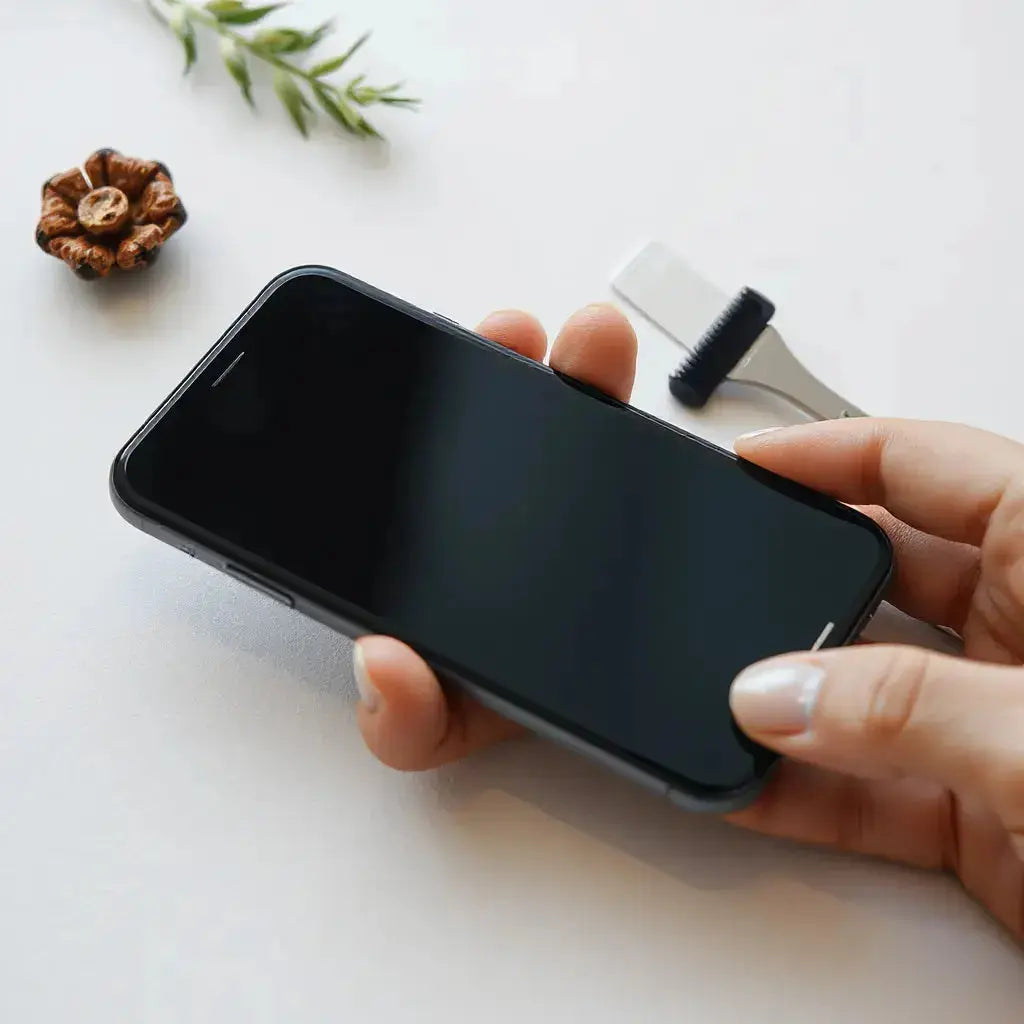
Hand smoothing protector on a clean, dust-free workspace
How to Choose the Right Texture Screen Protector
The best choice depends on how you use your device. If you write, sketch, and annotate, prioritize a texture that supports controlled strokes and comfortable friction. If you mostly read and browse, prioritize glare reduction and stable finger tracking. If you use a stylus frequently, consider how the surface interacts with your pen tip and whether the protector supports consistent line quality.
Texture feel and stylus compatibility
Texture protectors are designed to change tactile feedback. A paper-like surface can reduce the sense of sliding and can encourage smoother movement. However, not every texture matches every workflow. If your stylus notes look uneven, try adjusting your stylus settings and pressure levels. The goal is a comfortable feel that still supports accuracy.
Glare management for everyday visibility
Reflections can interfere with reading, drawing, and even casual scrolling. A texture surface with an anti-glare coating can soften highlights and reduce distracting glare. This improvement is most noticeable when you use your device near windows, in bright rooms, or outdoors. While no protector eliminates all reflections, quality coatings reduce them effectively.
Edge fit and installation stability
Edge lifting is often caused by poor alignment or insufficient surface cleaning. Choose a protector that matches your model. A good fit helps keep the adhesive contact uniform across the perimeter. If you use a tablet case, confirm that it does not press on the protector edges in a way that causes lifting.
Anti-scratch expectations
Many protectors include coatings intended to resist everyday wear. Still, the protector is not a substitute for careful handling. Use a stylus tip cover when recommended and avoid placing keys or rough objects directly on the screen. With normal care, a quality protector can extend the time before the glass shows visible wear.
For people who want a surface that supports note-taking and writing, consider an option built around a textured, paper-inspired experience. One relevant product from our catalog is the PaperType® Screen Protector.
PaperType® Screen Protector - Perfect for Sketching, Writing, and Note-taking on iPads

View the PaperType® texture screen protector
Using a Texture Screen Protector for Writing and Sketching
Texture protectors are often chosen for creative and academic work. Writing on smooth glass can feel slippery, especially for long sessions. A textured surface can create a more stable contact point for the stylus and can make strokes feel more deliberate. For sketching, it can also help reduce the sensation of uncontrolled gliding.
Set up your workflow
Choose the right pen tip. Many styluses work best with a compatible tip. A mismatched tip can reduce the benefit of the texture.
Practice short sessions. Use a quick warm-up page to calibrate muscle memory. Then continue with your usual pace.
Check gesture sensitivity. Some devices respond differently when surfaces change. Review settings to avoid unintended palm touches.
Reduce fatigue with better visual comfort
Glare reduction matters during long work sessions. When the screen is easier to see, you often adjust your posture less and focus more on the task. A texture coating can also help you stay consistent, because it reduces distractions from harsh reflections.

Notebook-style icons around a tablet screen silhouette
Care, Maintenance, and Troubleshooting
To keep your texture protector performing well, routine maintenance is essential. Use a microfiber cloth and screen-safe cleaning methods. Avoid abrasive materials that can change the surface texture. If you notice smudges, clean gently and let the surface fully dry before heavy use.
Removing dust after installation
If you see a small particle under the protector, do not immediately force removal with sharp tools. Small dust can be minimized by careful cleaning and patient smoothing. For persistent debris, follow the product’s reinstallation or removal guidance. In general, rework should only be attempted when you understand the product instructions.
Managing bubbles
Micro bubbles can appear during installation. Many settle as the adhesive acclimates. If bubbles persist, check whether the protector is aligned correctly and whether smoothing pressure was even. Use the recommended approach from the product guidance for best results.
When to replace
Replace a protector when you notice peeling at the edges, a deep scratch that affects visibility, or persistent adhesion failure. Replacement is often more cost-effective than repeated troubleshooting that risks further damage.
If you also use accessories, you may benefit from pairing screen protection with device-friendly cases. For a broader setup, you can explore related options in our collection pages, such as anti-glare screen protectors and tablet protection accessories like iPad covers.
In addition, you may want an accessory ecosystem that complements your daily carry. For example, if you are building a travel-friendly kit, review protection and organization options like laptop sleeves and related gear at bags and sleeves for laptops and tablets. For a separate set of home and comfort products, you can also visit WarmthWave .
Frequently Asked Questions
Does a texture screen protector change the clarity of the display?
It can slightly affect how light reflects, which may improve perceived clarity in bright environments. The intent is glare reduction and better visual comfort rather than changing colors.
Will a texture screen protector work with any stylus?
Most texture protectors are designed to support popular active styluses, but performance can vary by tip type and device model. If line quality is not ideal, adjust stylus settings and confirm tip compatibility.
Can I apply a texture screen protector more than once?
Some protectors may allow repositioning during installation, but repeated removal and reapplication can reduce adhesive performance. Follow the product instructions for repositioning and replacement guidance.
Summary & Key Takeaways
A texture screen protector can improve the feel of your screen, reduce distracting reflections, and support more controlled writing and sketching. The best results come from choosing a precise fit, cleaning carefully, and applying with patient alignment. Maintain the surface with gentle cleaning and replace the protector when adhesion or damage becomes noticeable. If you want an experience that feels more intentional than bare glass, a textured, anti-reflection protector is a strong option.
Q&A Section
What is the main advantage of a textured surface compared with a standard clear protector?
The key advantage is tactile feedback. A textured protector can reduce the “slippery glass” sensation and can make stylus contact feel more controlled. Many also include anti-reflection characteristics to reduce glare during reading and creative work.
How can I tell whether I chose the wrong texture?
Common signs include inconsistent stroke feel, excessive drag, or distraction from visual reflections that do not improve with the new surface. If touch gestures feel less responsive, verify that the protector is fully aligned and that you cleaned the surface correctly during installation.
Are there best practices for reducing fingerprints on a texture screen protector?
Fingerprints are normal on touchscreen surfaces. To reduce them, wipe gently with a microfiber cloth and avoid touching the screen after installation with oily hands. For cleaning, use screen-safe methods and avoid harsh chemicals that can affect coatings.
About the Author Section
Moarmouz is an e-commerce content specialist with expertise in product research, Shopify merchandising, and accessory-focused customer education. This article was written to help you evaluate texture protectors with clarity and practical expectations. For questions about compatibility or installation approach, prioritize the exact product instructions included with your protector. Thank you for reading, and may your screen feel as good as it looks.
Disclaimer: This article is for general information only. Always follow the specific installation and care instructions provided with your screen protector. Results may vary depending on device model, screen condition, and environmental factors during installation.
Share:
Water-Resistant Laptop Sleeve: What to Look For
PaperType vs Tempered Glass: Which iPad Screen Protector Is Actually Right for You?