



Updated on: 2026-05-22
Screen safety for tablets helps protect your display from scratches, smudges, and daily wear.
A good screen protector also improves touch comfort and visibility in bright environments.
For best results, match the protector type to your tablet model and use proper installation steps.
This guide covers common challenges, smart comparisons, and practical recommendations for long-term screen care.
Table of Contents
What Screen Safety for Tablets Really Means
Screen safety for tablets is a practical approach to protecting the touchscreen surface while preserving clear viewing and responsive touch. Tablets are used in many settings: commuting, home workspaces, classrooms, and travel. Each environment adds risk, such as micro-scratches from bags, fingerprints from frequent use, or glare from outdoor lighting. A well-chosen screen protector acts as a barrier, reducing wear while keeping the display readable.
Screen safety is not only about impact resistance. It also covers everyday factors that degrade clarity over time. Smudges can make text harder to read. Minor scratches can reduce contrast. Dust trapped under a protector can create visible haze. The most effective protection plan addresses all of these issues with the right materials and correct installation.
Common Challenges
Even careful users often face predictable issues with tablet screens. The good news is that each problem has a targeted solution.
1) Micro-scratches from daily carry
Small particles in a sleeve or bag can move against the screen during movement. Over time, these particles can cause fine scratches that are difficult to notice at first.
Solution: Choose a protector designed for hardness and scratch resistance. Pair it with a clean storage routine, such as keeping the tablet in its own compartment or using a padded case.
2) Fingerprints, oils, and reduced clarity
Finger oils leave smears that can be distracting, especially when you read documents or view high-contrast text.
Solution: Look for an anti-smudge or oleophobic-style coating and consider an anti-glare option if you frequently use the tablet under strong lighting.
3) Air bubbles, dust, or lifting edges
Improper installation can trap dust or create bubbles. If edges lift, debris can collect underneath, which can worsen visibility and create peeling.
Solution: Follow a step-by-step installation process with careful cleaning, a dust-removal pass, and a controlled alignment before pressing.
4) Touch sensitivity changes
Some protectors can feel thicker or can affect the responsiveness of taps and swipes.
Solution: Select a protector designed to maintain touch accuracy. Before committing, read compatibility guidance for your tablet model and verify that the recommended thickness aligns with your expectations.

Checklist visuals for scratch, glare, dust, and touch
Comparison: Tempered Glass, Film, and Hybrid Options
Selecting screen safety for tablets starts with understanding the protection type. The right choice depends on your priorities: maximum scratch coverage, thinner feel, anti-glare performance, or ease of installation.
Below is a simple comparison you can use to narrow options quickly.
Anti-glare and readability
If you read outdoors or work under bright lights, glare can reduce legibility. An anti-glare finish helps maintain contrast. This matters for long sessions such as studying, editing, and note-taking, where constant eye focus can become tiring.
Privacy needs for shared spaces
In coworking spaces, public transport, or classrooms, others may look at your screen from the side. Privacy-style protectors limit viewing angles while maintaining on-screen visibility for the user.
How to Choose the Right Screen Protector
Choosing the best solution is easier when you evaluate four factors: compatibility, protection goals, installation complexity, and long-term usability. The objective is not to choose the most expensive option, but the best matching one.
Compatibility with your tablet model
Screen protectors should align with the display size and shape. Edge differences can impact fit and can increase the chance of lifting. Always confirm that the protector is intended for your tablet model and screen dimensions. Compatibility also affects whether camera cutouts, speaker areas, or sensor regions align properly.
Protection goals: scratches vs. impacts
Most everyday damage starts as scratches. Impacts can still occur, but they often affect more than the display alone. For full protection, screen safety for tablets works best when combined with a protective tablet cover or case system that absorbs drops and prevents the screen edge from striking hard surfaces.
Clarity and touch comfort
High clarity maintains readability for text, diagrams, and charts. Touch comfort matters for drawing, handwriting, and fast navigation. If your tablet supports stylus input, prioritize a protector that supports fine pen performance and smooth swiping.
Coating and environment fit
For high-smudge environments, prioritize smudge resistance. For outdoor use, prioritize anti-glare performance. For shared spaces, prioritize privacy.
To explore accessory options that support screen safety and daily protection, you can browse related categories on the Moarmouz site.

Side-by-side icons for scratch, glare, privacy, and fit
Installation and Maintenance That Prevent Problems
A screen protector can fail early if installation and maintenance are not handled carefully. This section focuses on repeatable steps that reduce dust and prevent edge lifting.
Prepare the workspace and clean thoroughly
Choose a clean, well-lit area. Wash and dry your hands before handling the protector. Use a screen-safe cleaning routine to remove oils. If you skip the oil-removal step, fingerprints can lock into the adhesive and become difficult to clean later.
After cleaning, allow the screen to dry fully. Any lingering moisture can increase the chance of bubbles or haze.
Align before committing to full press
Start with light positioning. Many protectors include guide features. Use them to align with the display edges and key openings. Once alignment looks correct, perform a gradual press. This reduces trapped air and helps the protector settle evenly.
Use the correct tool approach
If a squeegee or similar applicator is included, use it to encourage smooth adhesion. Apply pressure from the center outward in controlled passes. Do not over-press in one area, as that can shift alignment.
Let the protector settle, then inspect edges
Give the protector time to settle before heavy use. Then inspect corners and edges for lifting. If you notice a small area lifting, address it early rather than waiting, because debris can collect and worsen the issue.
Ongoing care to extend screen safety
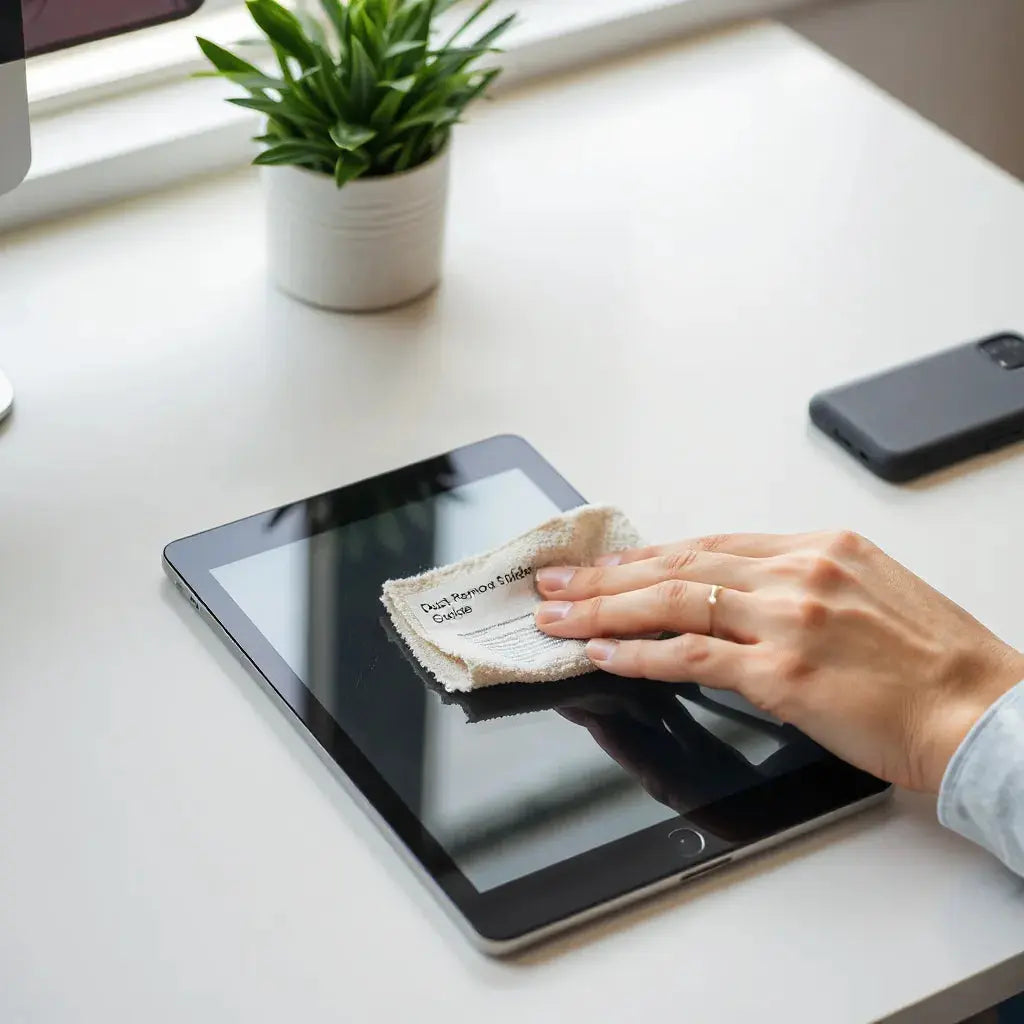
Use microfiber cloths designed for screens. Avoid abrasive materials and harsh chemicals. If your screen protector has an anti-glare coating, treat it gently. Regular cleaning reduces the buildup of particles that can scratch the surface during wipe sessions.
For stylus users, keep the pen tip clean and avoid pressing with excessive force. Excessive pressure can stress coatings and may increase micro-wear.
Summary & Recommendations
Screen safety for tablets is most effective when it balances protection, clarity, and daily usability. Tempered glass is a strong choice for scratch resistance and a smooth feel. Films can be attractive for thin comfort and simplified handling, while hybrid specialty options can target anti-glare and smudge control. Regardless of type, compatibility and installation quality determine long-term performance.
Recommended approach: Confirm compatibility for your tablet model, choose a protector based on your daily environment, and install it carefully with a clean routine. Combine screen protection with a supportive cover or sleeve for full-device defense.
If you want to strengthen your tablet setup further, you can also explore matching accessories from Moarmouz, including protective cases, anti-glare solutions, and storage options.
- Choose anti-glare protection
- Select a tablet cover
- Store safely in a sleeve
- Review privacy-style protector design
Q&A Section
How do I know which protector is compatible with my tablet?
Check the protector specifications against your tablet model and screen size. Compatibility should include alignment for display edges and any openings that affect sensors or speaker regions. When guidance is available, use it rather than relying on general dimensions alone.
Will a screen protector change touch sensitivity?
It can, depending on thickness and material. High-quality protectors are designed to preserve touch response and support smooth swiping. If you frequently use a stylus or rely on precise gestures, prioritize a protector that explicitly emphasizes touch performance and clarity.
What is the best way to prevent bubbles during installation?
Clean the screen thoroughly and keep the workspace dust-free. Align the protector carefully before pressing fully, then press gradually from the center outward. Inspect closely during installation so small trapped areas can be corrected early.
How often should I replace a tablet screen protector?
Replace it when you see lifting edges, persistent haze that cleaning cannot remove, or deep scratches that interfere with readability. If the protector is damaged but still seated firmly, replacing it promptly can prevent debris from accumulating under the surface.
About the Author
Moarmouz
Moarmouz is a content and accessory specialist focused on screen protection, device durability, and practical buyer guidance. This team draws on product-design best practices and usability-focused research to help customers make informed decisions. With a commitment to clarity and long-term value, Moarmouz supports readers in building safer, more reliable tablet setups. Thank you for reading and applying these screen safety principles to protect your everyday display.
Share:
Paper-Like iPad Screen Protectors: Benefits and Buying Tips
iPhone Case Buying Guide: Fit, Style, Protection