



Updated on: 2026-07-10
What responsive drawing means for modern artists
Setup fundamentals that improve responsiveness
Brush and layers practices for consistent results
Stroke control techniques you can apply immediately
Practice routines and repeatable workflows
Troubleshooting lag, jitter, and inconsistent lines
What responsive drawing means for modern artists
Responsive drawing is the ability to translate your intention into a line on the canvas with minimal friction. For artists, that responsiveness directly shapes realism, speed, and confidence. When the pen, stylus, screen, and software communicate smoothly, your hand and eye stay aligned. You can capture gesture, preserve subtle pressure changes, and refine edges without fighting the tool.
In practical terms, responsive drawing depends on several factors working together. The display must track your touch accurately. The input device must interpret contact and pressure reliably. The software must apply brush settings in a predictable way. When any one component is inconsistent, the result feels delayed or unstable. This is why responsive drawing tips for artists should focus on both technique and environment.
One useful mindset is to treat the drawing process as an input pipeline. Your hand produces motion, the stylus converts it into signals, and the app renders a stroke. Each stage can introduce variation. Your goal is to reduce variation and standardize the pipeline so your best work becomes repeatable.
Setup fundamentals that improve responsiveness
Start with the most common source of problems: avoidable friction in your setup. Even experienced artists can benefit from reviewing these basics, because subtle changes can create a noticeable improvement.
-
Check stylus fit and condition. A worn tip can cause skipping and uneven contact. Replace tips before they become rounded or damaged. If your drawing feels scratchy or inconsistent, tip wear is often the first suspect.
-
Use the correct surface for your workflow. Screen protectors and textured films can change friction and tracking. Choose a surface that matches how you want to feel in motion. If you switched recently, retune your brush sensitivity and test line quality.
-
Confirm device settings for handwriting and pen input. Stylus modes, palm rejection, and gesture settings affect how reliably the app interprets strokes. Keep these settings stable across your sessions so your muscle memory stays accurate.
-
Keep performance healthy. Large canvas files, heavy layers, and background tasks can lead to frame drops. Close unused applications and avoid unnecessary effects during sketching. For complex pieces, move effects to later stages when timing can be controlled.
When responsiveness improves, it is usually because your input pipeline becomes consistent. You stop guessing whether the line will behave and start focusing on shape, value, and gesture.
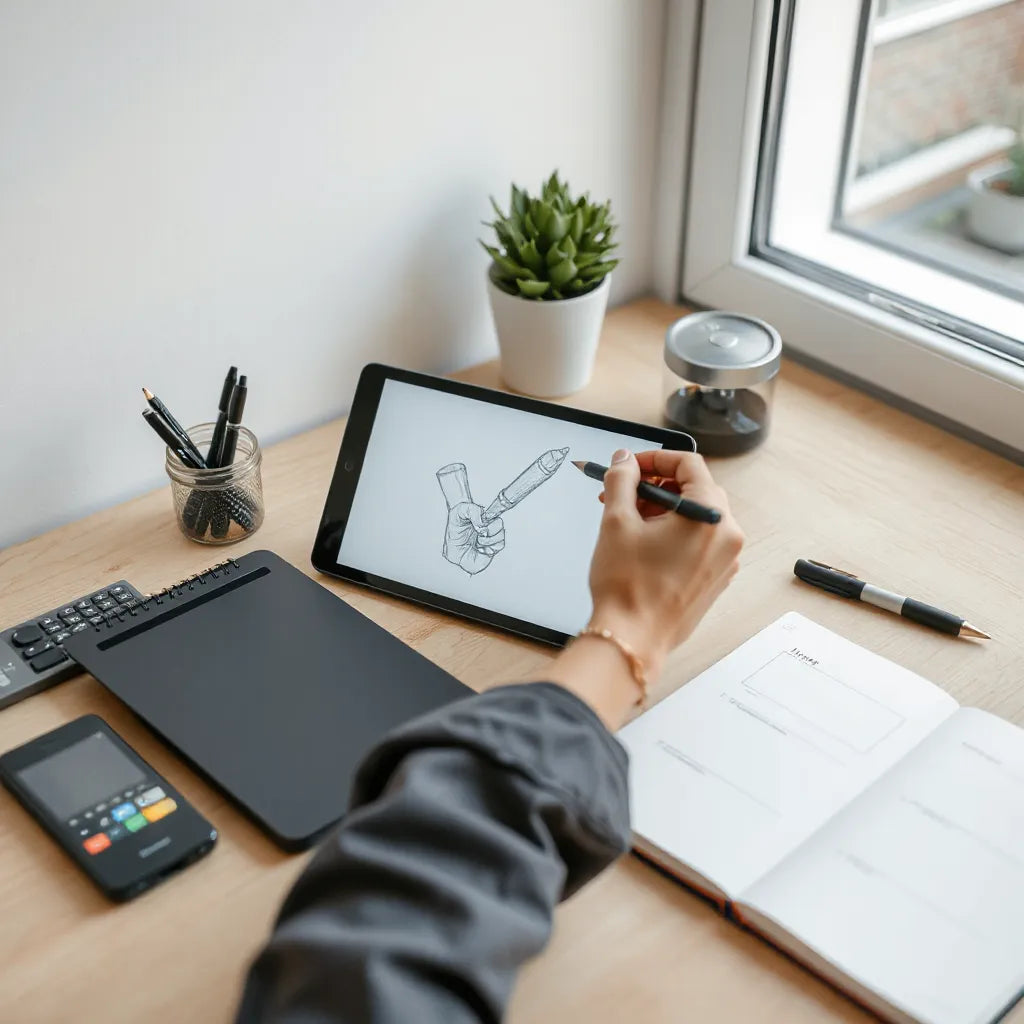
Clean gesture lines over stable grid, symbolizing responsiveness
Brush and layers practices for consistent results
Brush settings determine how your strokes appear, but they also influence how the drawing feels. A brush that is visually correct but computationally heavy can introduce delays. A brush that is light and responsive but poorly tuned can create frayed edges or unpredictable pressure response. Use the following practices to balance appearance and performance.
Choose brushes that respond predictably to pressure
Pressure behavior should match your intent. If you build linework using tapered strokes, select a brush that respects pen angle and pressure. If you prefer confident, uniform line weight, use settings that reduce variability. Test on a small area first so you can observe whether pressure scaling behaves consistently across thin and thick movements.
Control smoothing and stabilization
Stabilization can help reduce jitter, yet excessive smoothing can make lines feel like they lag behind your hand. For responsive drawing, aim for enough smoothing to remove micro tremors while preserving your ability to make sharp turns. A good approach is to start with low smoothing for gesture and increase it only for deliberate curves.
Layer structure for speed and clarity
Organize layers so you can isolate what needs attention. Keep early sketch layers simple. Place refine stages on separate layers so you can adjust opacity or blending without reprocessing everything. If your app supports layer blending modes, use them carefully during the sketch phase. Some modes increase render load, which can reduce responsiveness when you draw quickly.
Use limited texture during early stages
Texture brushes can be beautiful, but they can also add render complexity. If your strokes feel slow, switch to a cleaner brush for blocking and linework. Reintroduce texture at the rendering stage. This method keeps the workflow responsive and reduces frustration.
To support a practical workflow, you can also pair your digital practice with a reliable stylus accessory strategy. For example, if your stylus tips wear unevenly, switching to fresh tips can restore a consistent feel and improve early stroke accuracy.
Product: PaperType Pencil Tips 2 (assorted)
PaperType Tips for steadier pen feel
Stroke control techniques you can apply immediately
Responsive drawing is not only about hardware. Technique creates a second layer of stability. When your hand movement matches the way the app interprets input, your strokes look intentional even when you draw at speed.
Draw with the wrist and rotate with the shoulder
Overusing finger motion often increases tremor. Use the wrist for short adjustments and the shoulder for longer sweeps. This distributes motion across larger joints and improves line confidence. If you struggle with shaky arcs, rehearse slow shoulder-led curves for a few minutes. You can then accelerate while keeping the same joint pattern.
Use consistent start pressure
Many artists unconsciously start strokes with inconsistent pressure, which creates sudden thickness changes. Practice a controlled initial contact. Your goal is to make the first moment of a stroke predictable. After the start, allow pressure to vary according to your plan for tapering.
Plan shape with gesture before detail
Gesture drawing is a responsiveness strategy. When your silhouette is correct, minor line imperfections matter less. Spend a short interval blocking the main form. Then switch to a line style that matches the stage you are in. This avoids overworking early marks and keeps your strokes feeling purposeful.
Vary speed intentionally
Speed changes can change how your pen angle and pressure communicate. Instead of drawing at one constant tempo, vary speed based on the contour. Slow down on direction changes. Move slightly faster on straight segments. This creates a natural rhythm that improves both line quality and perceived responsiveness.
Practice routines and repeatable workflows
Responsive drawing is built through feedback loops. A short practice plan that targets specific issues can produce noticeable improvements without adding hours to your schedule.
Use a timed line study cycle
Repeat a simple sequence: draw 20 short strokes, then 20 medium curves, then 20 long lines. Keep the objective consistent each session. Evaluate whether the line starts cleanly, holds thickness smoothly, and ends without abrupt jumps. If one stage fails, adjust either brush settings or stabilizer strength.
Test two surfaces and keep the rest constant
If you use a protector or film, run controlled tests. Draw the same shape in the same brush with identical settings on each surface. Do not change multiple variables at once. You want clarity on what improves contact and what creates friction that disrupts tracking.
Build a “responsive preset” library
Create a small set of presets that you know feel good for sketching, inking, and rendering. For each preset, document the brush behavior: pressure response, taper settings, smoothing range, and any texture intensity. When you open a new file, you start from the same baseline. That consistency reduces surprises and helps you reach final results faster.
Reduce canvas complexity during ideation
During early sketching, simplify. Hide complex layers, reduce expensive effects, and keep brush texture low. Once you lock the drawing, you can increase detail and layer complexity. This approach preserves responsiveness when it matters most: at the moment you decide the composition.
Troubleshooting lag, jitter, and inconsistent lines
When responsiveness drops, artists often change technique first. That is reasonable, but a structured troubleshooting path prevents wasted time. Use these checks in order.
Lag during fast strokes
Lag commonly occurs when the app is rendering too much at once. Reduce layer count temporarily, disable heavy blending modes, and turn off animated effects if your software allows them. Also check whether the device storage is near capacity, as low storage can reduce performance stability.
Jitter on straight lines
Jitter is often caused by insufficient stabilization or unstable contact between tip and surface. Increase stabilization slightly, then retest. If jitter persists, inspect stylus tip condition. A tip that is partially worn can create micro skipping that looks like tremor. Fresh tips often restore a smooth glide and more reliable tracking.
Pressure feels inverted or inconsistent
Pressure curves may differ from your expectations after updates or configuration changes. Review the app’s pressure settings and ensure that the brush responds in a way that matches your drawing goals. If your brush includes both pressure and opacity dynamics, consider simplifying to only one driver for sketching.
Gaps, skips, or sudden line breaks
Skipping can occur when the stylus does not maintain consistent contact. Check palm rejection and pen mode settings. Also verify that the protector is clean and properly applied. Dust and uneven edges can interfere with sensing. A quick screen cleaning step can restore clarity before you change software settings.
If you want to optimize display clarity while maintaining a stable drawing surface, you can explore compatible accessories on the studio side. For example, consider browsing anti-glare screen protectors to improve visibility during long sessions.
Future-proofing your studio for steady performance
Responsive drawing tips for artists should also include long-term planning. Technology changes. Settings update. Hardware ages. The most resilient workflows are those that keep your core behavior stable even when you upgrade.
Document your settings
Save your brush presets and record your stabilization, pressure curve, and layer strategy. When you update software, you can reapply known-good configuration faster. This reduces disruption and preserves consistency in your line language.
Adopt a maintenance routine
Stylus tips wear. Screen protectors accumulate marks. Dirt affects tracking. A simple maintenance routine keeps your tools predictable. Inspect tips at regular intervals, clean screens gently, and replace worn accessories early rather than after line quality deteriorates.
Standardize device orientation and grip
Gripping angle affects line behavior. If you often draw with the tablet or device in varying angles, you may introduce variation. Aim for a repeatable stance. Use consistent viewing distance and comfortable ergonomics so your wrist and shoulder motion remain reliable.
Plan for accessory compatibility
When you add accessories, confirm compatibility and behavior. For instance, some screen films change how the stylus glides. If you add or remove protectors, run the same line study cycle and adjust presets accordingly. Responsiveness improves when every change is verified with a controlled test.
If you store your devices for travel, consider keeping protection consistent. A stable setup reduces the chance of damaged tips, misalignment, or scratches that can affect contact and tracking. For device protection ideas, you can review iPad covers and sleeve options designed for safeguarding during movement.
FAQ
How can I make my digital lines feel more responsive without changing my art style?
Begin by optimizing your input pipeline. Use fresh stylus tips, keep your screen clean, and verify palm rejection and pen mode settings. Then adjust stabilization only enough to remove micro jitter, not enough to blur your timing. Finally, test a small set of brush presets so your line language stays the same while the feel improves.
Why do my strokes look good sometimes but become inconsistent during longer sessions?
Inconsistency often relates to performance and contact stability. Background processes can slow rendering, and overworked layers can increase lag. Stylus tips also wear further with use, which can create subtle skipping. Reduce canvas complexity during sketching, and inspect the tip condition if quality declines gradually.
What is the fastest way to diagnose jitter versus lag?
Jitter appears as unevenness along a line, especially on slow or straight segments. Lag appears as delayed rendering when you move quickly. Run a short test: draw straight lines slowly to check jitter, then draw the same length quickly to check lag. Once you identify the symptom pattern, adjust the relevant settings first.
About the Author
Moarmouz
Moarmouz is a digital workflow focused author specializing in artist-centric setup design, drawing performance, and reliable creative routines. The team emphasizes practical methods that help artists produce consistent linework across changing devices and software updates. With a strong emphasis on clarity and repeatability, Moarmouz provides guidance that supports confident practice. Start with the most impactful adjustments, test them in short sessions, and refine your system until responsiveness becomes automatic.
Disclaimer: This article provides general educational guidance for improving digital drawing responsiveness. Results vary based on device model, software configuration, and accessory compatibility. Always follow manufacturer recommendations when changing hardware settings or using protective films.
Share:
iPad Modular Cases: Build Your Perfect Setup Guide
iPad Modular Cases: Build Your Perfect Setup Guide