



Updated on: 2026-07-20
If you own a MacBook Air M4 with a 15-inch display, the right accessories improve protection, comfort, and day-to-day productivity. The best setup balances durability with usability, especially for travel and frequent desk work. From screen protection to storage and charging solutions, thoughtful add-ons reduce wear and prevent avoidable damage. This guide outlines common selection mistakes and a practical checklist you can apply immediately.
1. Key macbook air m4 15 inch accessories to prioritize
2. Protection essentials that reduce everyday risk
3. Workspace accessories for accuracy and comfort
4. Portability and travel accessories for the 15-inch model
5. Accessories comparison by use case
6. How to choose accessories without wasting money
7. Summary & recommendations
8. Q&A
1. Key macbook air m4 15 inch accessories to prioritize
Choosing macbook air m4 15 inch accessories is not only about aesthetics. It is about protecting a premium device and improving how smoothly you work. A well-rounded accessory plan typically includes screen protection, a durable carry solution, and a set of practical tools for power, ports, and daily handling. When these are selected correctly, you reduce scratches, limit dust exposure, and maintain a more stable workflow.
Start with items that address high-impact wear points. For many users, the biggest risks are the screen surface, the keyboard deck, and the edges during storage. Next, address connection and power gaps. The 15-inch MacBook Air is designed for portability, which means you may want accessory options for charging flexibility and additional connectivity. Finally, add comfort upgrades that support long work sessions, such as ergonomic input and better laptop stand positioning.
Visual planning for protection and handling

Layered icons for screen, keyboard, and edge protection
2. Protection essentials that reduce everyday risk
Protection accessories are the fastest way to preserve resale value and prevent small defects from turning into costly repairs. The key is to choose products that match the 15-inch form factor and that are easy to install and remove. If you frequently move between home, office, and travel, a protective approach becomes even more important.
Screen protection for daily contact and micro-scratches
A screen protector helps reduce micro-scratches from dust, keys, and bags. It also improves your viewing experience by providing a more consistent surface feel. For many users, anti-glare performance matters because indoor lighting and window reflections can reduce readability. Look for solutions designed for the MacBook Air 15-inch size and confirm installation method and optical clarity.
If you want a purpose-built option, review screen protection and anti-glare choices from anti-glare screen protectors. Matching product dimensions and ensuring a clean installation step are more important than any single material claim.
Keyboard and deck care for long-term cleanliness
Keyboard covers and protective skins can help keep dust and fine particles out of the keys. They can also protect the laptop deck from everyday marks when you place the computer on surfaces with different textures. When selecting a keyboard protector, prioritize fit, ventilation, and the ability to maintain comfortable key feel. Some users remove keyboard covers during typing-heavy periods to preserve maximum tactile feedback; others keep them on for extended travel protection.
For users who want a focused approach, consider a dedicated category such as keyboard protectors to compare fit and coverage styles.
Hard shell and case-like protection for storage and transit
For bags, desks, and vehicles, rigid protection helps reduce edge impacts. A hardshell concept can provide a physical barrier against minor bumps. However, it should not obstruct vents or interfere with ports. The goal is impact control without compromising airflow.
If you want to compare protective shells tailored to different laptop families, browse MacBook hardshell cases. Choose models that clearly specify compatibility with the 15-inch Air line.
3. Workspace accessories for accuracy and comfort
Once protection is covered, the next priority is comfort and workflow. Many productivity accessories are not strictly necessary, but they can reduce friction and help you work more confidently, especially during long sessions. The most effective upgrades support posture, reduce glare, and make input devices easier to use.
Anti-glare and viewing comfort for varied lighting
Even if you protect the screen, reflections can still affect readability. An anti-glare solution can support better visibility in mixed lighting. This can be beneficial in home offices, co-working spaces, and travel environments where light direction changes throughout the day.
Stands and placement for healthier posture
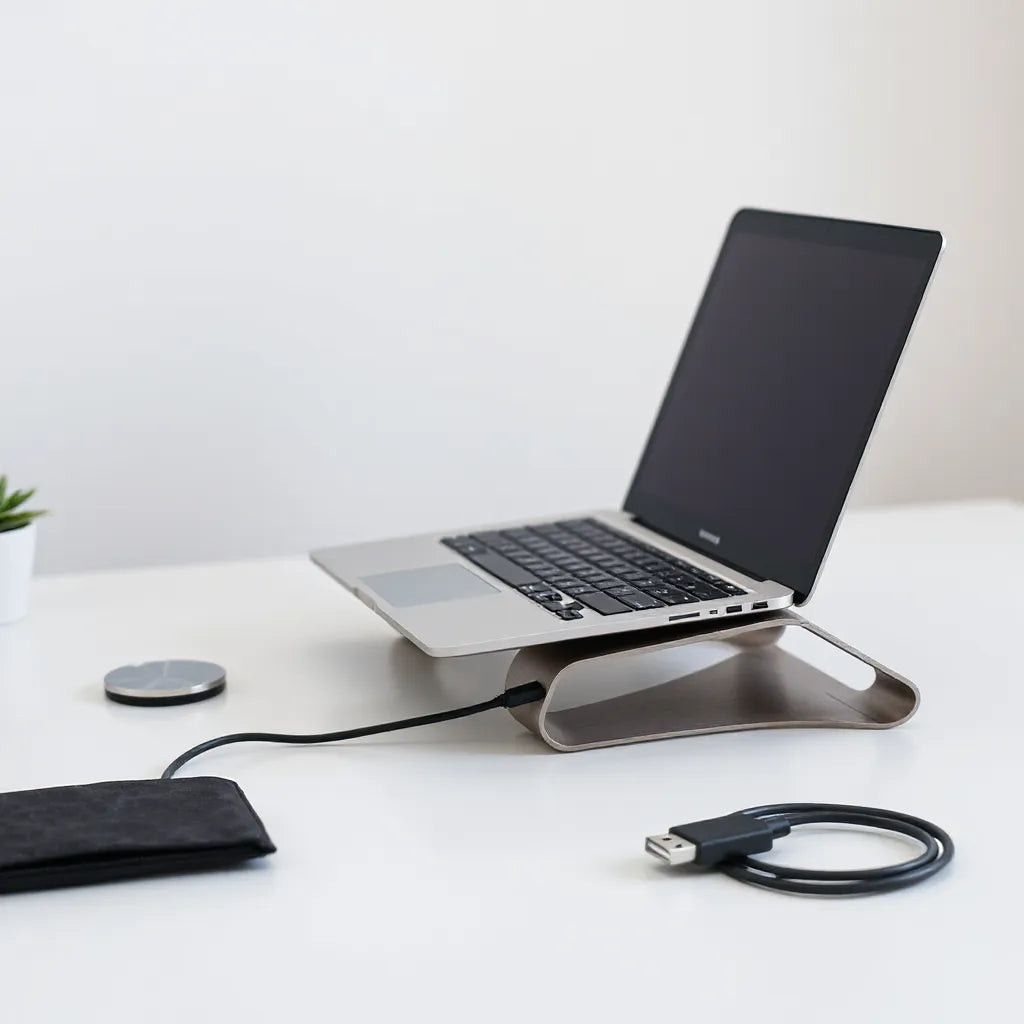
A laptop stand can raise the screen to a more ergonomic height. It also improves airflow by creating space underneath the device. For users who do video calls or presentations, stable screen placement can help maintain framing consistency. When selecting a stand, focus on stability, cable clearance, and the ability to lock the angle in a way that suits your typical working posture.
Input devices and surface coordination
Many users pair the MacBook Air with a mouse, trackpad alternative, or an external keyboard. An external setup can increase accuracy for spreadsheets and design work. Even when you keep a compact setup, small improvements such as a consistent mouse surface or an organized desk can reduce repetitive strain. Consider whether you need a full external keyboard or only a compact option for travel.
When using an external keyboard, verify that your accessories do not make your bag storage harder. A tidy organization strategy can keep you from mixing cables and adapters at the bottom of a bag.
Storage organization for cables, chargers, and adapters
Accessories are also about organization. Use cable management items and small storage sleeves so your power solutions are easy to access. Organized accessories reduce time spent searching and reduce the chance of accidental damage from friction or bending connectors.
4. Portability and travel accessories for the 15-inch model
Portability should remain effortless. The 15-inch MacBook Air is large enough to be a primary computer for many users, yet portable enough for frequent travel. The right travel accessories help you carry the device safely and access it quickly at airports, cafes, and client meetings.
Bags and sleeves that protect without bulk
A good sleeve or bag supports impact resistance and keeps the laptop from contacting hard surfaces directly. Look for interior padding, a secure closure, and a form factor that fits the device without excessive wiggle. If you travel with accessories, consider a layout that keeps cables and chargers separated from the laptop surface.
You can explore bags and sleeves for laptops and tablets to compare designs intended for everyday carry and extended travel.
Charging and connectivity planning
Travel exposes connectivity challenges. Hotels, conference rooms, and airport lounges vary in outlets and available ports. A compact charging plan helps you maintain steady work without improvisation. In practical terms, you want reliable charging capability and a strategy for connecting external displays if needed.
Accessory layers for different travel modes
Not every trip needs the same level of protection. For short trips, a sleeve may be enough. For longer travel, a more structured carry system helps reduce impacts. For commutes with public transportation, additional edge protection can be worthwhile. The best approach is to build accessory layers based on your travel intensity rather than buying every item at once.

Travel route icons with luggage, sleeve, and cable ties
5. Accessories comparison by use case
The most efficient accessory plan depends on how you use your MacBook Air. Below is a practical way to compare options. Use it to decide what to prioritize first.
For daily desk work
- Screen protection to reduce micro-scratches and keep the display surface consistent.
- Stand or placement solution to improve viewing height and airflow.
- Keyboard protection if your workspace is dusty or you eat near your computer.
For students and frequent note-taking
- Durable sleeve or bag with secure closure for class-to-home movement.
- Keyboard or deck protection to reduce daily wear from bags and backpacks.
- Cable and accessory organization so power accessories are always ready.
For creators and long editing sessions
- Anti-glare focus for consistent readability during edits.
- Stable placement with a stand to reduce neck strain.
- Optional input devices for precision work and reduced fatigue.
For business travel and client environments
- Hardshell-style protection and a structured carry solution for transit impacts.
- Charging and connectivity accessories to avoid on-the-spot troubleshooting.
- Cleanable surfaces and protective layers to keep the device presentable.
6. How to choose accessories without wasting money
Accessory shopping often becomes inefficient when buyers prioritize novelty over compatibility. You can avoid wasted purchases by using a repeatable evaluation method.
Confirm model size and compatibility
When dealing with macbook air m4 15 inch accessories, verify the exact screen size and device family compatibility. Many accessories are similar across models but not identical. A mismatch can result in poor alignment, reduced protection, or installation issues.
Evaluate protection level based on your environment
If your workspace is mostly stationary, you can prioritize readability and comfort. If you travel frequently, physical protection becomes more critical. Consider the places your laptop contacts regularly: desk edges, bag compartments, car floors, and transportation surfaces.
Choose installation approaches that match your routine
Some accessories are designed for quick installation, while others require careful alignment. If you plan to remove and reapply items often, choose solutions that remain stable under frequent use. For screen protection, expect careful alignment to matter more than the material type.
Prefer systems that keep cables and accessories organized
Many productivity problems are actually organization problems. A consistent cable layout improves desk readiness and reduces connector wear. Use small storage options that help you carry essentials without tangling.
Balance budget with durability
Spending more on compatibility and durability often prevents repeat purchases. However, it is still important to buy only what you will use. A minimalist approach that covers screen, keyboard, and carry solution frequently outperforms a large collection of uncoordinated items.
7. Summary & recommendations
The right accessory strategy for a MacBook Air M4 15-inch device focuses on protection, comfort, and travel readiness. Prioritize screen and deck protection, then add a reliable sleeve or bag for daily movement. For long sessions, invest in viewing comfort and stable placement. Finally, plan charging and organization so your workflow does not break when you are away from your usual desk.
If you want to refine your setup, start with categories that match your immediate needs: screen solutions for readability, keyboard protection for cleanliness, and carry options for transit. You can explore relevant accessory categories through anti-glare screen protectors, laptop bags and sleeves, and hardshell cases to compare fit and coverage.
For specialized screen compatibility, you may also review a focused option like privacy magnetic screen protector for MacBook Air 13.6 M2 to understand how privacy-oriented designs can work. Always ensure the dimensions align with the 15-inch model before purchase.
8. Q&A
Which macbook air m4 15 inch accessories give the highest value for protection?
For most users, the best value comes from screen protection, keyboard or deck coverage, and a reliable sleeve or bag with adequate padding. These items address the most frequent contact points: the display surface, the input deck, and the exterior during transit. Together, they prevent common wear and reduce damage risk from daily handling.
Do I need both a sleeve and a rigid case for travel?
You do not always need both. If your travel routine is mostly controlled environments and you carry the laptop carefully, a quality sleeve may be sufficient. If you frequently move through crowded transit areas or store the device in bags with mixed items, adding rigid protection can provide extra edge impact resistance. The best approach is to match protection strength to your travel conditions.
How can I avoid buying accessories that do not fit correctly?
Start by confirming exact compatibility with the 15-inch MacBook Air M4 line. Compare product dimensions and installation method details before checkout. If you plan to use multiple items together, verify that one accessory does not interfere with another, such as screen protectors that affect touch behavior or carry solutions that limit closure clearance.
What accessory upgrades improve comfort for long working sessions?
A laptop stand that positions the screen at a comfortable height and a viewing solution that reduces glare are typically the highest-impact comfort upgrades. If you work extensively with spreadsheets or design tools, an external input device can reduce fatigue through better ergonomics and precision. Cable and organization planning also reduces desk clutter, which helps maintain a smoother workflow.
Are anti-glare accessories worth it for indoor use?
Anti-glare solutions are often worth it when your lighting changes throughout the day or when reflections reduce readability. In offices with overhead lights, windows, or bright monitors, anti-glare performance can improve text clarity and reduce eye strain from constant visual correction. If your workspace already provides comfortable contrast, screen protection alone may be enough.
About the Author
Moarmouz
Moarmouz is an e-commerce and accessory strategy specialist focused on product compatibility, usability, and long-term device care. With expertise in consumer electronics accessories and shopper education, the team builds guidance designed to help readers choose confidently. The editorial approach prioritizes practical evaluation and clear recommendations. Thank you for reading, and may your accessory setup support a more reliable and comfortable workflow.
Disclaimer: This article is for general informational purposes only and does not guarantee compatibility, results, or performance of any accessory with your specific device. Always verify product specifications, installation guidance, and warranty terms before purchase.
Share:
Anti-Glare Screen Protector: Benefits and Fit Tips
Anti-Glare Screen Protector: Benefits and Fit Tips