



Updated on: 2026-05-13
Choosing the right protection and utility items for your MacBook Air can improve daily comfort and long-term durability. This guide explains practical macbook air m4 accessories, including cases, screen protection, sleeves, and everyday add-ons.
You will learn how to match accessories to your workflow, ports, and storage habits. You will also find quick answers to common questions about fit, cleaning, and material choices.
Key Benefits
macbook air m4 accessories are not only about appearance. They also protect your investment and streamline daily work. When you select accessories with the correct fit and purpose, you reduce friction in your setup and extend the useful life of the device.
- Better protection during travel: A sleeve or hardshell case reduces scratches and absorbs minor impacts.
- Screen clarity and scratch resistance: A tempered anti-glare screen protector can help maintain readability in bright environments.
- More comfortable daily use: Support items and cable management improve posture and reduce desk clutter.
- Safer organization: Storage accessories help you keep chargers, adapters, and accessories together.
- Simple maintenance: Protective layers make cleaning faster and more consistent.
Step-by-Step Guide
Step 1: Confirm your MacBook Air model and size needs
Start by verifying your MacBook Air configuration and screen size so that accessories align with button positions, hinge clearance, and display curvature. Many fit issues occur when a case or protector is designed for a different generation or dimension. If you travel often, prioritize accessories that preserve access to ports and ventilation.
Step 2: Choose a protection layer that matches your routine
Most users benefit from a layered approach: one accessory for screen protection and another for body protection. If you work at a desk, a keyboard-safe approach and a sleeve can be enough. If you commute, a more structured hardshell option and a padded sleeve combination typically offers stronger coverage against accidental contact.
- For daily carry: Use a laptop sleeve with adequate padding and a smooth interior lining.
- For higher scratch risk: Use a hardshell shell or protective skin that covers the outer surfaces.
- For consistent screen visibility: Use an anti-glare screen protector to reduce reflections and fingerprints.

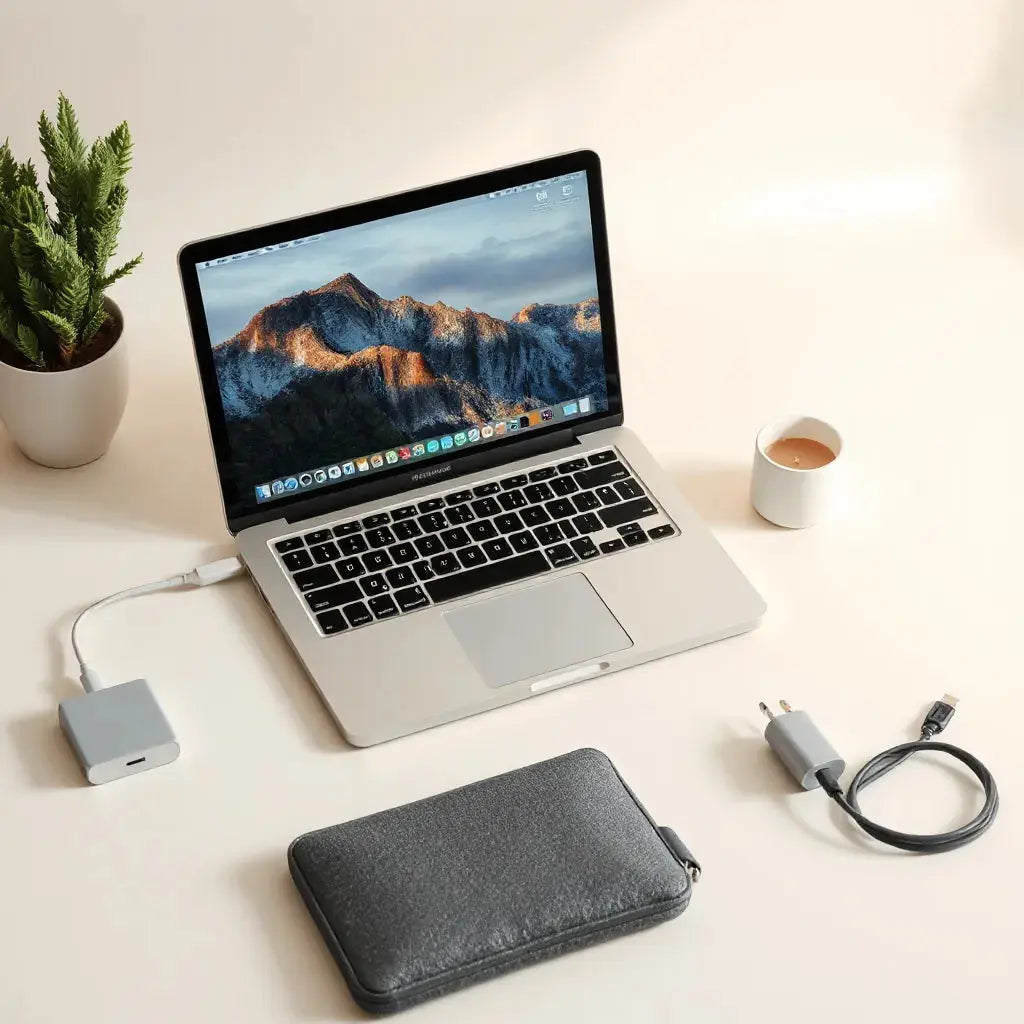
Layered protection concept: shield, screen film, padded sleeve
Step 3: Select screen protection for comfort and readability
Your screen is the most frequently touched surface and the most visible one. A screen protector can reduce glare, soften reflections, and help prevent micro-scratches from dust and daily wiping. When you apply a screen protector, ensure that the installation area is clean and free of debris. Follow the included alignment guidance so that the protector covers the full active display area without interfering with the bezel.
If you want an anti-glare option, choose one intended for MacBook Air screen dimensions and compatible with touch and viewing angles. For users who work outdoors or near windows, anti-glare benefits can be meaningful because reflections can reduce contrast.
Explore a compatible option from Moarmouz:
Step 4: Add body protection without blocking function
Body protection should support airflow and access to ports. A well-designed hardshell or case should not press against buttons, obstruct speakers, or create stress points near the hinge. If you frequently connect external displays, audio devices, or charging equipment, prioritize accessories that keep cable routing straightforward.
For MacBook Air case protection, consider these relevant categories:
Step 5: Improve cable management and desk organization
Accessories around the device often determine whether your setup feels clean or chaotic. Use cable management tools so charging and data transfer remain reliable. When cables are neatly routed, you also reduce wear on connectors caused by strain.
Practical additions include:
- Short, durable charging cables for frequent desk use
- Organizers or straps to keep adapters together
- Clear labeling for travel versus home charging kits
For accessory cables and related needs, review:

Workflow optimization: tidy desk, routed cables, protected screen
Step 6: Protect the keyboard area and reduce wear
Keyboard protection can help prevent dust buildup and reduce the chance of residue settling into key gaps. A compatible keyboard protector can also provide an additional barrier during daily cleaning. Choose materials that do not interfere with typing feedback and that fit the keyboard contours.
Consider Moarmouz categories designed for keyboard protection:
Step 7: Build a balanced travel kit
Most users do not need every accessory at once. A balanced macbook air m4 accessories kit should cover the main risks: scratches, screen damage, and cable disorganization. The best kits are modular. Keep one set for commute and another set for home desk use, rather than carrying everything every day.
When packing, use a routine:
- Close the device carefully before placing it into the sleeve.
- Store cables and adapters in a separate pocket so they do not press against the screen.
- Keep a soft microfiber cloth available for routine cleaning.
This approach reduces pressure points and improves consistency in how you maintain the device.
FAQ Section
What are the most essential macbook air m4 accessories for daily use?
For most users, the most essential accessories are a padded laptop sleeve, a screen protector (especially an anti-glare or privacy-focused option), and a body protection layer such as a hardshell case. These items address the most common risks: scratches, reflection fatigue, and minor impacts during travel.
How do I choose the correct screen protector fit?
Start by matching the screen size and generation of your MacBook Air model. Confirm that the protector aligns with the bezel and does not overlap camera or speaker areas in an unintended way. If you select an anti-glare or privacy protector, review compatibility notes so the surface finish remains smooth and readable.
Do cases and sleeves scratch a laptop if the inside lining is not smooth?
Yes, a rough interior can cause micro-scratches over time, especially if dust is present. Choose a sleeve with a smooth, protective lining. Clean the sleeve interior periodically, and avoid placing the device in a sleeve with abrasive debris. For additional protection, use a screen protector to reduce the impact of accidental contact.
Summary & Final Thoughts
Selecting the right macbook air m4 accessories is a practical way to protect your MacBook Air while improving daily comfort. Focus on a reliable protection layer for the screen and body, then add organization tools that reduce wear from cables and daily packing habits. If you want to build a cohesive setup, browse compatible categories from Moarmouz and choose items based on your travel and work patterns.
Next step: Review the available options for cases, sleeves, and screen protection on Moarmouz, then select a small set first and expand only when your workflow clearly requires it.
About the Author Section
Moarmouz is a content team specializing in device protection guidance and accessory selection for modern Apple ecosystems. The authors focus on practical, durable choices that support everyday productivity and long-term care. For more product guidance and accessory categories, visit Moarmouz. Thank you for reading, and may your setup remain clean, protected, and dependable.
Disclaimer: This article is for informational purposes only. Product compatibility, fit, and installation outcomes depend on the exact MacBook Air model and the specific accessory selected. Always follow the manufacturer instructions for installation and care.
Share:
High-Speed Data Transfer Cable Buying Guide for Speed
Premium Accessories for Tech Lovers: Upgrade Picks