



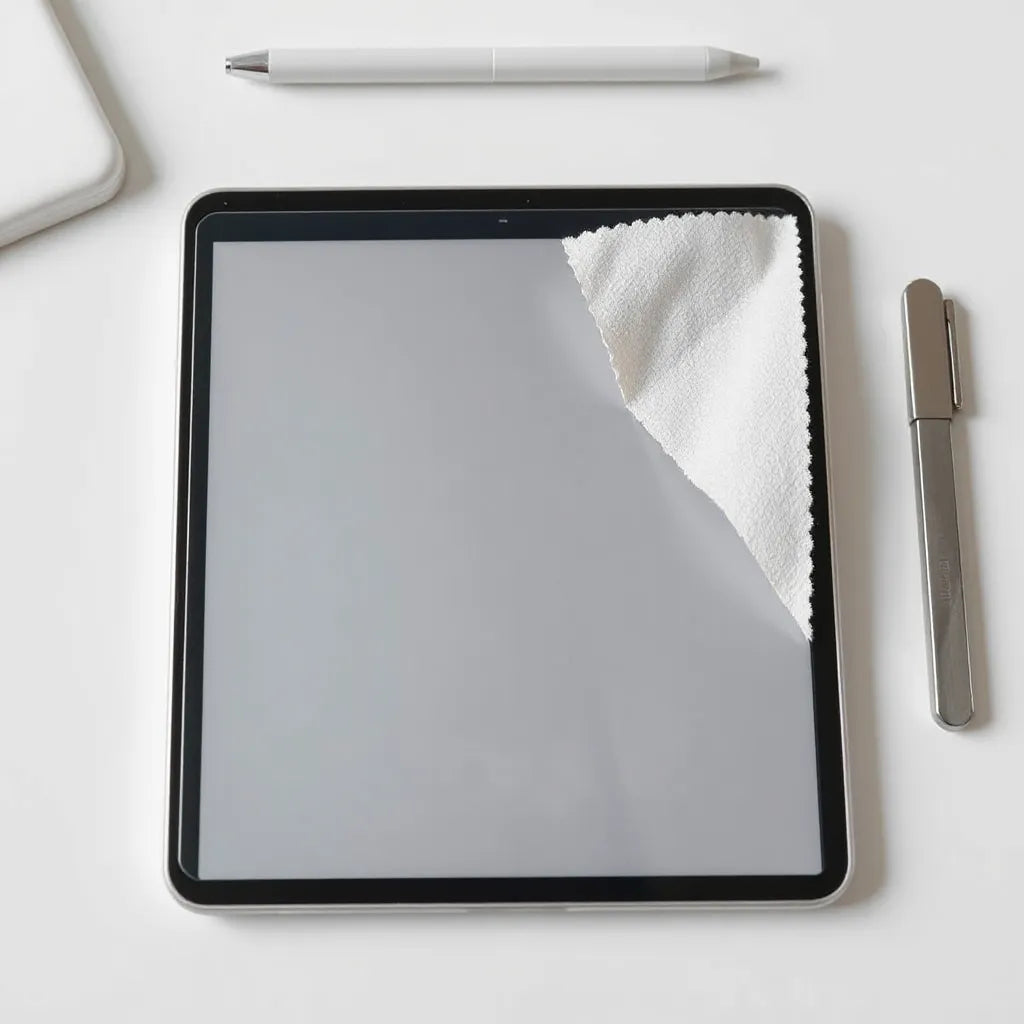
Updated on: 2026-07-03
Contents
- What an iPad paperlike screen protector is
- Product Spotlight: A paper-feel protector designed for writing
- How to choose the right protector for your workflow
- Step-by-step installation for a clean finish
- Personal experience: learning the value of texture
- Care, settings, and habits that improve results
- Summary & recommendations
- Q&A
- About the Author
What an iPad paperlike screen protector is
An ipad paperlike screen protector is a thin film placed over your iPad display to change how the surface feels and how the stylus interacts with it. Instead of a smooth, glass-like glide, it creates a lightly textured finish that many people associate with pen-and-paper writing. This is especially relevant for note taking, sketching, and annotating documents.
It is important to understand that a paper-feel film is not only about comfort. The texture can influence line appearance, friction, and control. When stylus tip friction increases, users often gain more consistent stroke behavior, particularly during slower, deliberate drawing. For handwriting-focused workflows, that added feedback can reduce overshooting and improve letter shape.
At the same time, a textured protector also changes light behavior. Some versions appear more matte, reducing glare under bright environments. Others focus more on stylus interaction than on anti-reflective performance. Choosing the correct balance depends on how you use the tablet and what you prioritize: writing feel, scratch resistance, glare control, or long-term display clarity.
Product Spotlight: A paper-feel protector designed for writing
For users who want reliable writing behavior and a surface that feels closer to paper, a quality matte, stylus-friendly film is typically the most direct solution. Look for protectors that are engineered for stylus use and that provide even texture across the screen area. In practice, the best protectors tend to offer three advantages: stable stylus traction, reduced reflections, and a protective layer against everyday wear.
To complement your setup beyond the screen, consider pairing your tablet protection strategy with a secure case. A stable device position improves note taking and drawing accuracy. You may also find that a case with solid edge coverage helps you keep the protector area clean during daily use.
- Stylus consistency: The surface texture helps the tip behave predictably across short and long strokes.
- Reduced glare: Matte finishes help limit distracting reflections in well-lit spaces.
- Everyday protection: A film adds a sacrificial layer against minor scratches and scuffs.
If you are building a full iPad protection system, explore options for tablet covers and display-friendly designs at iPad covers. A dependable case can make the installation process easier to maintain by reducing screen-edge stress.

Matte surface texture, stylus stroke lines, glare reduction icons
How to choose the right protector for your workflow
Not every paper-feel protector performs the same. Differences in texture pattern, transparency, and edge finishing can affect readability and comfort. Before you purchase, review your intended use and match it to the protector features that matter.
Prioritize writing and drawing needs
If your primary goal is handwriting and sketching, focus on stylus interaction. The ideal protector tends to provide a texture that feels stable without causing excessive drag. Too much friction can tire your hand during long sessions, while too little may not deliver the pen-like feedback you want.
Balance clarity with matte feel
When a protector is too reflective, it can make screen content harder to read outdoors or under overhead lights. A matte protector can help. However, higher matte levels can reduce perceived sharpness. Look for a protector that maintains acceptable display brightness and text legibility, especially for reading PDFs and annotated documents.
Check for compatibility and installation coverage
Screen protectors vary in cutout design and alignment. A protector that fits your exact iPad model improves edge coverage and reduces the risk of lifting. Before installation, confirm that the package specifications match your device version.
Consider protection level at the edges
Edges take the most stress in daily use. A well-finished edge helps prevent peeling over time. If you frequently place your iPad into a bag or use it on the go, edge stability becomes more important than surface feel alone.
For users who also want privacy or reduced viewing angles on certain devices, a compatible approach can be helpful. While this article focuses on a paper-feel film, you may still value screen-control accessories. For example, you can review related options on privacy screen protection to understand how protective layers can also affect light behavior.
Step-by-step installation for a clean finish
A careful installation strongly influences long-term performance. Even an excellent protector can fail if dust or misalignment is present at the start. The steps below aim to minimize bubbles, dust specks, and edge lifting.
- Prepare the environment: Choose a clean, still space. Avoid installing near open windows or fans that move dust.
- Power down and clean the screen: Use a microfiber cloth to remove oils and particles. If the kit includes a cleaning wipe, follow its instructions.
- Handle the protector by the edges: Touch only the border area. Fingerprints can interfere with adhesion.
- Dry-fit for alignment: Hold the film over the display to confirm correct placement. Alignment is easier to correct before adhesion begins.
- Apply with the included method: If the kit provides an alignment frame or guides, use them. Smooth the film gently from one side to the other.
- Remove dust carefully: If dust appears under the film, address it promptly using the tools in the kit. Do not press aggressively.
- Settle and check: After installation, inspect edges and corners. If a corner lifts, re-center and press lightly along the edge.
- Let it stabilize: Allow the film time to bond to the screen surface before heavy use.
Common installation issues and fixes
- Air bubbles: Small bubbles may reduce as the film settles. Persistent bubbles often indicate dust or uneven placement.
- Edge lifting: This can result from trapped debris. Re-clean the area and reinstall if necessary.
- Misalignment: Misalignment can cause uneven stylus response. Take time to re-fit before the adhesive fully sets.

Stepwise screen cleaning, alignment guides, edge press diagram
Personal experience: learning the value of texture
My transition to a paper-feel film started with a simple problem: my notes looked right on screen, but the drawing process felt too slippery. With a smooth glass finish, my stylus often glided faster than I expected. During slower lettering and shaded sketches, I found myself over-correcting, especially when writing in short bursts between app switches.
After installing a paper-like protector, I noticed a change immediately. The stylus created more tactile feedback, and my strokes stopped feeling detached from the screen. The difference was not only comfort. My handwriting became more consistent because the surface helped me control speed and pressure. I also observed that reflections from bright overhead lighting were less distracting during evening sessions.
Over time, I learned to adjust my habits. I slowed down slightly, used a lighter touch, and prioritized calibration-like behavior through stylus settings. With those small adjustments, the textured surface became a deliberate tool rather than a novelty feature. For many users, that is the key: the protector changes the interaction model, and your technique can evolve with it.
Care, settings, and habits that improve results
To keep an ipad paperlike screen protector performing well, you need consistent maintenance. Texture-based films can accumulate dust and oils more visibly than smooth glass. A few habits help maintain a clean writing surface and reduce unwanted drag.
Use appropriate cleaning methods
Clean the protector regularly with a microfiber cloth. If your kit includes a cleaning solution, use it as directed. Avoid harsh chemicals. Rough materials can permanently affect the texture and reduce stylus feel quality.
Manage stylus settings responsibly
Most iPads allow stylus-related sensitivity and behavior adjustments through supported apps and system settings. Small changes can improve line start behavior and reduce jitter. If you notice strokes feeling too heavy or inconsistent, adjust sensitivity gradually rather than making large jumps.
Protect the screen during storage and transport
Even the best protector can be stressed by debris. Use a case and keep the screen area covered. When you place the iPad in a bag, ensure that no keys or abrasive objects contact the film. This reduces micro-scratches that can degrade the paper-like feel.
Accept that matte finishes behave differently outdoors
Matte textures reduce glare, but they can also make the screen look less glossy in bright sunlight. If your work often happens outdoors, test your setup in similar lighting and check whether brightness adjustments are needed.
Summary & recommendations
An ipad paperlike screen protector is a practical upgrade for people who write, annotate, and sketch on their tablet. The core value is improved stylus control through a textured, matte-like surface. When paired with careful installation and good screen care, it can deliver a more natural workflow and reduce distracting reflections.
Choose a protector based on fit accuracy, edge finish, and the right balance between texture and visual clarity. Install it in a clean environment, smooth it carefully, and address dust immediately. After installation, adjust your stylus habits and settings in small steps. If you want to build a complete protection system, pair the screen film with a suitable case using iPad covers as a starting point.
If your priorities include glare control and writing feel, a paper-feel protector can be a strong long-term investment for daily creation. Evaluate your workflow, install correctly, and maintain the surface for consistent results.
Q&A Section
Will a paper-feel screen protector affect the display quality?
It can. Many paperlike films are matte, which may slightly reduce perceived brightness and crispness compared to bare glass. The goal is not to eliminate clarity, but to manage glare and stylus interaction. Selecting a high-quality protector with good transparency helps preserve text readability while still delivering the textured feel.
How does a paper-feel protector change stylus performance?
It changes friction. A textured surface typically slows the stylus glide and provides tactile feedback similar to writing on paper. This can improve control for handwriting and drawing. If the drag feels heavier than expected, adjusting stylus sensitivity and your grip pressure usually helps.
How long does an iPad paperlike screen protector last?
Longevity depends on usage, cleaning methods, and how the iPad is transported. Textured films are designed as a sacrificial layer, meaning they protect the display while gradually showing wear from contact. Regular gentle cleaning and using a protective case can reduce early degradation such as edge lifting or visible surface dullness.
About the Author
Moarmouz is a commerce-focused content specialist with expertise in product selection, accessory compatibility, and practical installation guidance for consumer electronics. The author’s approach emphasizes clear criteria, realistic expectations, and maintenance best practices. If you are building a smoother, more controlled iPad workflow, this guidance is designed to help you choose confidently. Thank you for reading.
Disclaimer: This article provides general guidance for accessory selection and installation. Results can vary based on device model, lighting conditions, stylus type, and usage habits. Always follow the instructions included with your specific protector and case.
Share:
Slim MacBook Protective Cover: Fit, Feel, and Function
MacBook Accessories That Improve Everyday Productivity